Attendance

Clock-ins, shifts, leave, overtime and payroll close in one place

Staff clock in and out on their phones or a shared kiosk tablet. Leave and overtime are requested and approved, balances update automatically, and each pay period is closed by staff and managers with a CSV for payroll.

Who uses it:ManagersStaff
What it does

Phone or kiosk

Part-timers without logins clock in on a shared tablet.

Shifts

Plan weekly shifts per area, see them as day/week/month charts, and email them out.

Leave & overtime

Request and approve vacation, personal, sick and overtime; sick leave accrues automatically.

Pay-period close

Staff, manager and company sign-off, rounding applied, CSV out.

How it flows

  1. 1Staff
    Clock in & out

    In the app or at the kiosk.

  2. 2Staff
    Request leave

    With remaining balances in view.

  3. 3Office
    Approve

    Approval deducts the balance and emails the person.

  4. 4Staff
    Close the period

    Submit the period for review.

  5. 5Office
    Finalize for payroll

    Confirm each person, then the company, then export CSV.

See the screens

Admin (office)

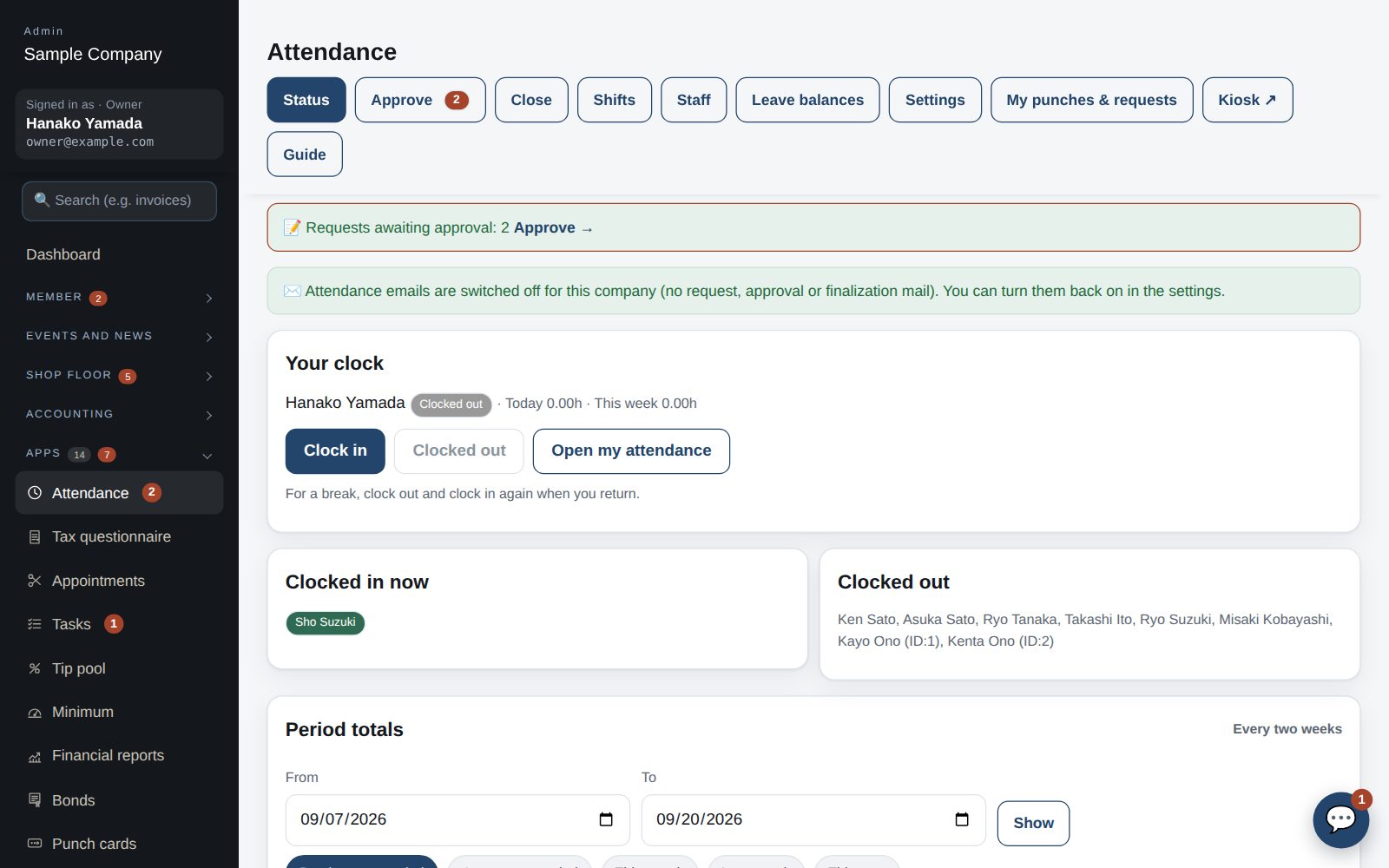
Status: who is clocked in, today's punches, your own punch buttons

Status: who is in now

  1. Open it from Admin → Apps → Attendance. The buttons switch screens: Status / Approvals / Period close / Shifts / Staff / Leave balances / Settings / Kiosk.
  2. See who is clocked in and today's punches. Managers can clock themselves in and out with “My punches” at the top.
  3. To punch on someone's behalf, use the buttons on their row (the operator is recorded).
  4. A break is “clock out, then clock in again on return”. Each row is one clock-in / clock-out pair.
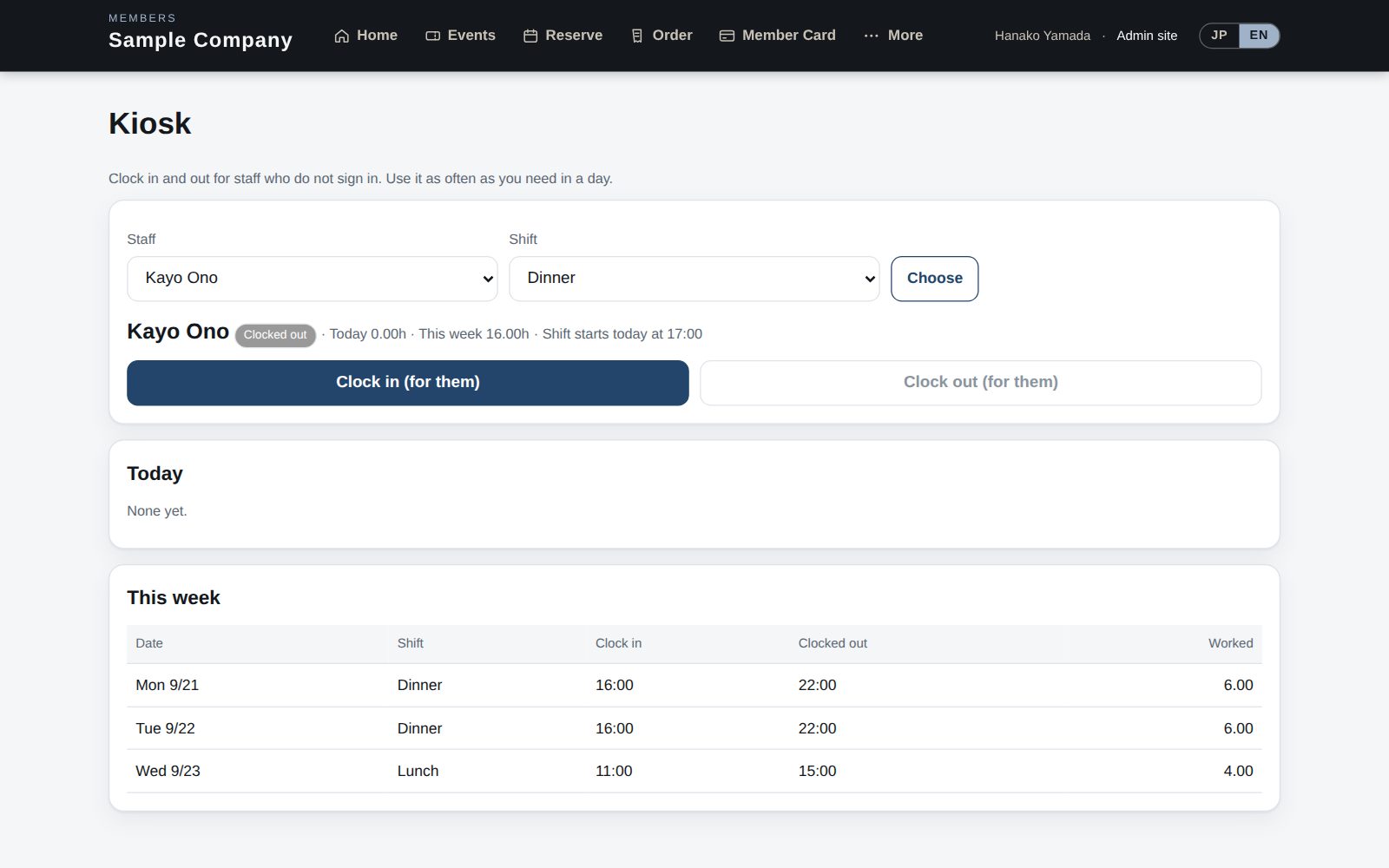
Kiosk (for a tablet): staff who don't sign in punch here

Staff and the kiosk

  1. People who sign in (administrators and members marked as staff in the roster) punch from “Attendance” in the member app.
  2. Part-timers who don't sign in are registered under “Staff” (name, language, hourly wage). They punch from the “Kiosk” screen by choosing their name.
  3. The kiosk is meant to stay open on a tablet in the shop. Open it in a new tab with “Kiosk ↗”.
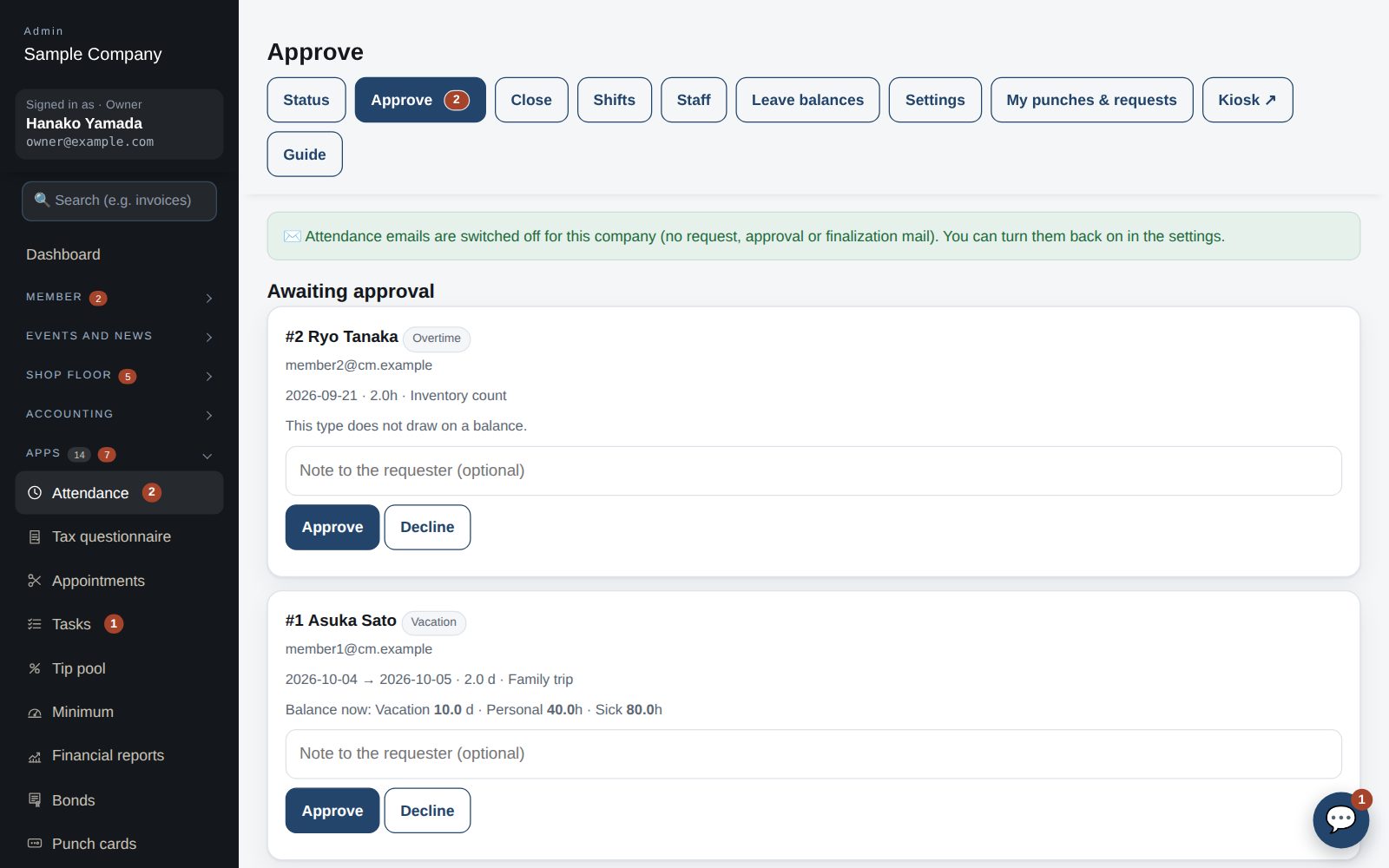
Approvals with each person's current balance

Approving leave and overtime

  1. Requests staff submit from the member app (Vacation / Personal / Sick / comp / PFL / overtime) appear under “Approvals”, with their current balance.
  2. Add a note and Approve / Reject. Approving deducts from the balance and emails the person (unless emails are paused).
  3. Made a mistake? ↩ under “Decided” returns it to pending (the balance is restored; no notification).
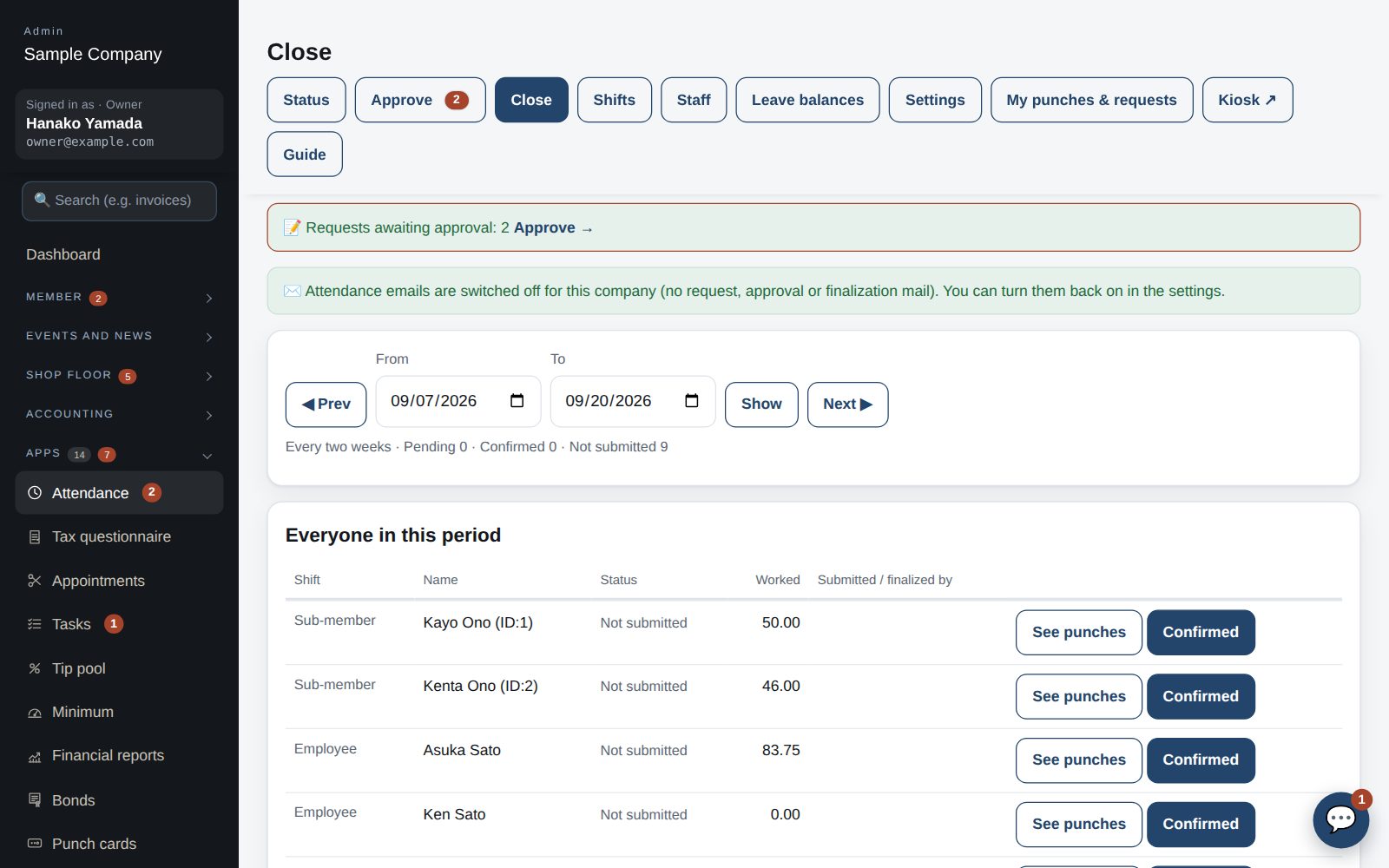
Period close: check each person's hours and confirm

Period close

  1. The cycle (weekly / biweekly / semi-monthly / monthly) and anchor date are set under Settings. The screen opens on the previous period.
  2. Each person submits “Close this period” from the member app → a manager confirms them one by one → finally “Confirm for the company”. Confirmed periods are locked (only the owner can reopen).
  3. Punches can be corrected or added under “Check / fix punches” without a request: pick a person to see their punches for the period, fix a time or add a row.
  4. “Punch details CSV” exports for payroll. Rounding (minutes) and the rounding method follow Settings.
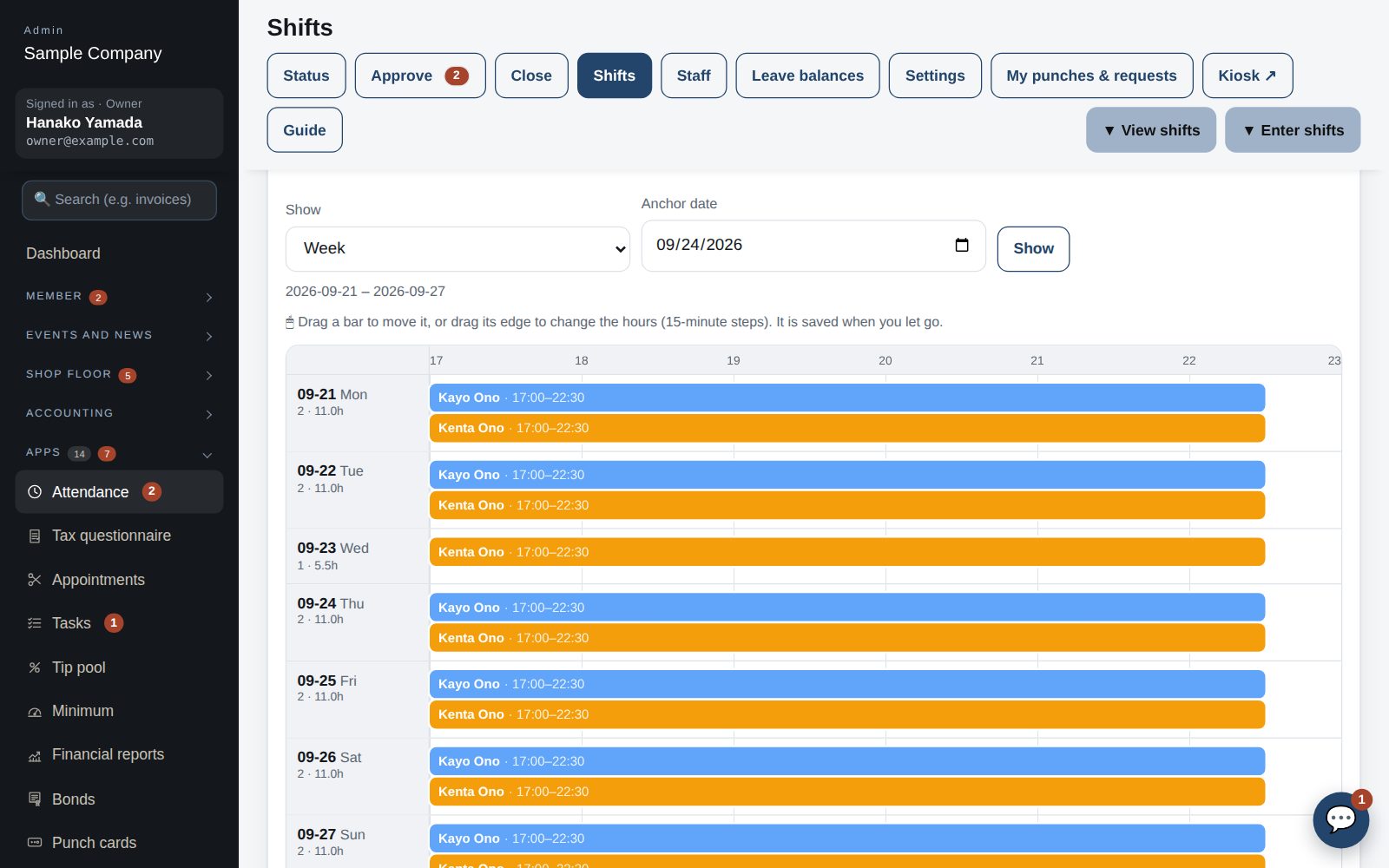
Shift chart (week): colored by work area, overlaps and gaps stand out

Shifts

  1. First create work areas (hall / kitchen …). The color is used in the chart.
  2. Choose an area and a week, tick the staff for each day, enter start / end and press “Save this day”. “Copy from last week” brings last week's shifts over.
  3. “View shifts” below shows a day / week / month chart, so overlaps and gaps are easy to see.
  4. “Email this week's shifts” sends each person their shifts. Unchanged shifts are not re-sent.
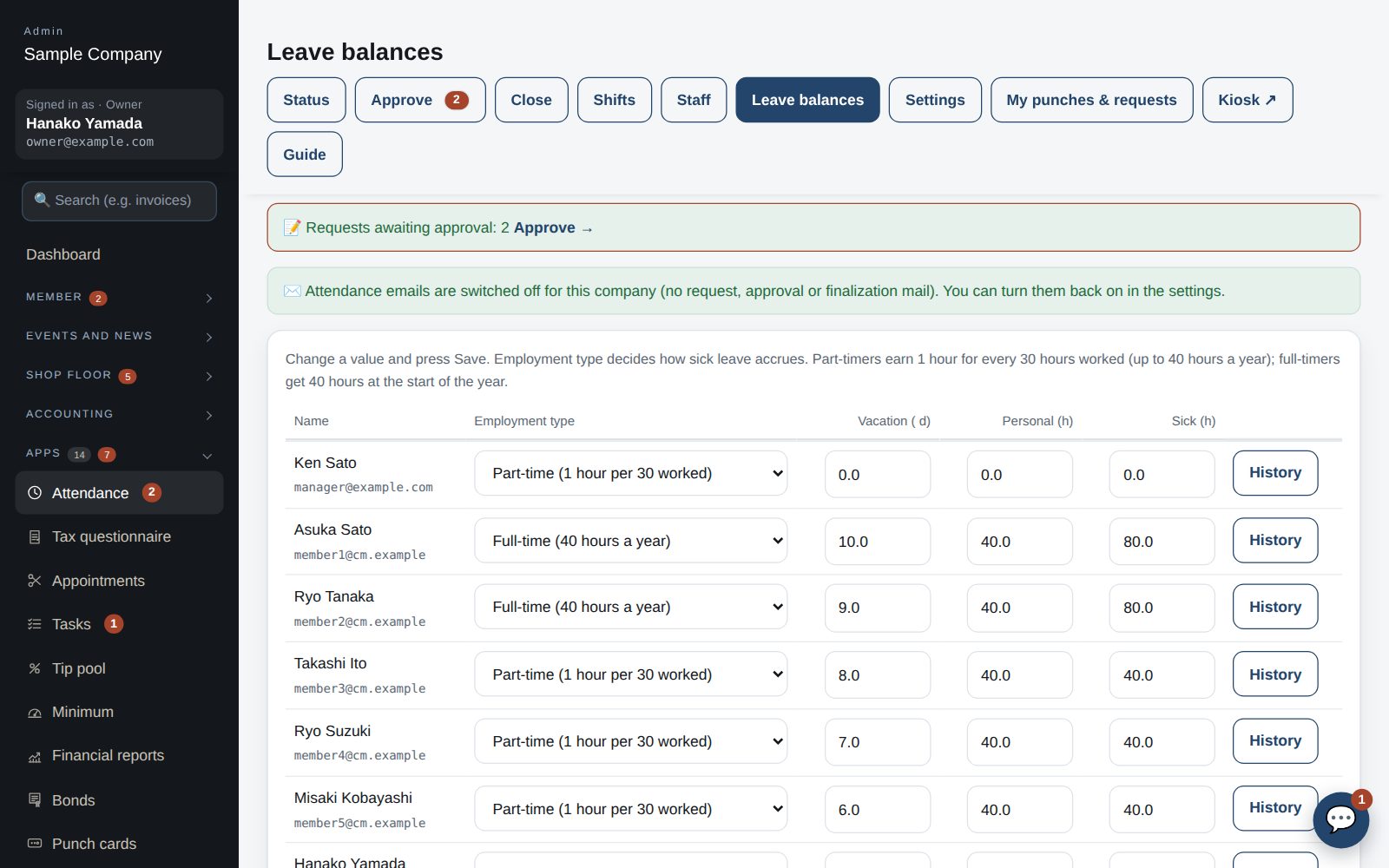
Leave balances: check and edit per person

Leave balances

  1. Check and edit each person's Vacation (days), Personal and Sick (hours). The employment type (employee / part-time) is set here too.
  2. Sick leave accrues automatically: 1 hour per 30 hours worked, up to 40 h a year. Employees get 40 h at the start of the year.
  3. Approved leave is deducted automatically. Manual adjustments are logged.
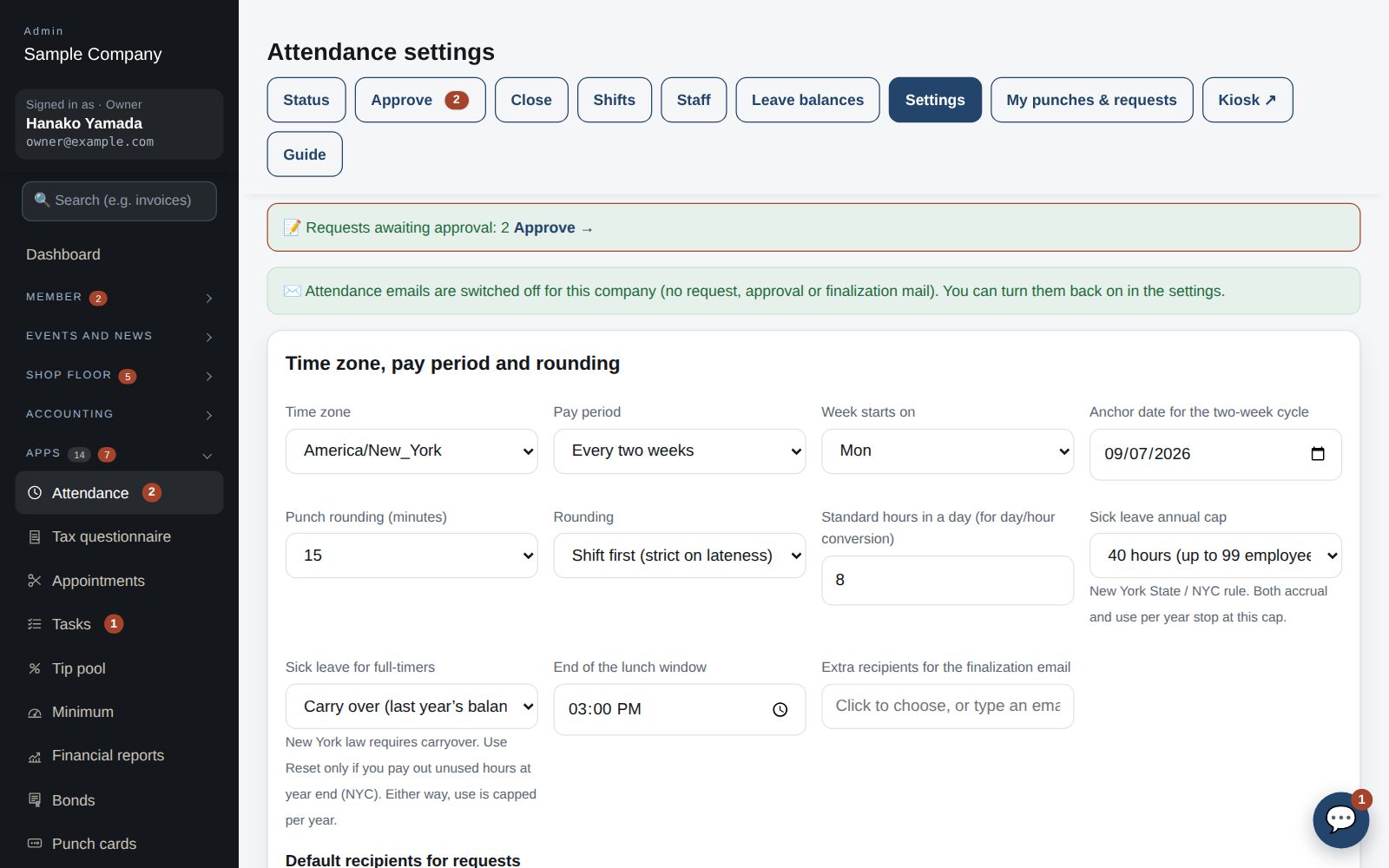
Attendance settings

Settings

  1. Time zone, punch rounding (minutes) and method (shift-first / nearest), the close cycle and anchor, end of the lunch window, standard hours per day.
  2. Email templates are edited per language (switch with “Edit English” / “Edit Japanese”). Each person gets their own language.
  3. “Don't send attendance emails” pauses all attendance notifications for this company. It is on right after an import.
  4. Delete data (owner only): punches only, or all attendance data. Type RESET to run.

Staff screens

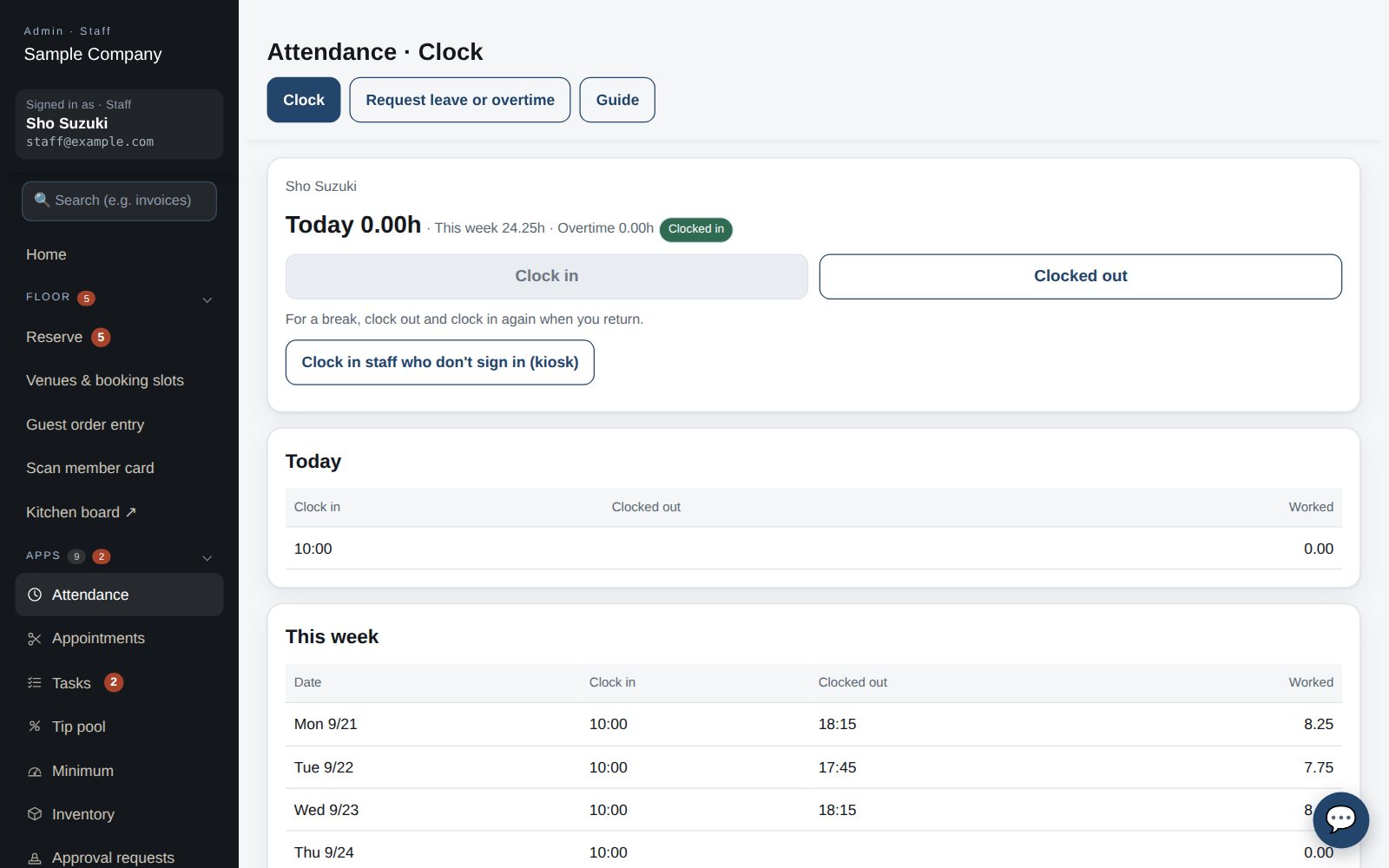
Attendance → Punch: clock in / out, today's and this week's punches

Your punches

  1. Open Apps → Attendance → Punch in the left menu (the Clock in / Clock out buttons on the home page do the same). For a break, clock out and clock in again when you return.
  2. Today's and this week's punches and the period's hours appear below. At the end of a period press “Close this period” to send your punches for review; after that, corrections are made by a manager.
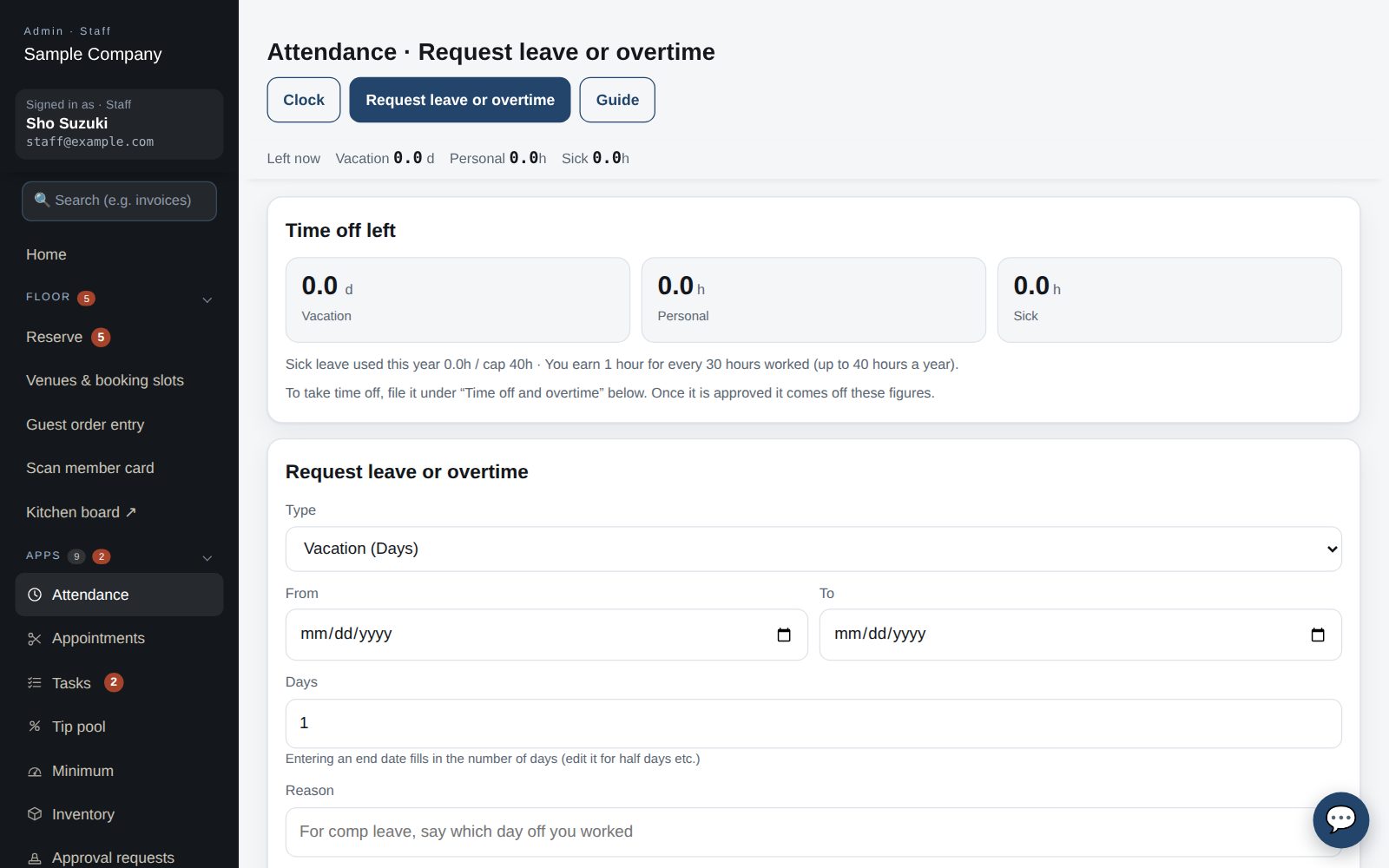
Attendance → Leave / overtime request: balance, form and your request history

Leave / overtime requests and your history

  1. Open Apps → Attendance → Leave / overtime request. Your remaining leave (Vacation / Personal / Sick) is at the top, the request form below. Enter type, dates, amount and reason; managers are notified.
  2. “My requests” at the bottom lists what you have submitted with its status (pending, approved, rejected), who decided and when, and the manager's note. Switch between this year, all, and pending only. Approved leave is deducted from your balance.

Works well with

Start with just the features you need. If nothing fits the way you work, we'll build it for you — free.

Get started →🎁 Get a custom app, free