Tasks

Assign → documents → review → done or send back. Tax season without the gaps

Managers assign tasks; staff upload documents and send them for review. Approve to finish or send back with a note. Open counts show in each person's menu, and new ones are announced without a reload.

Who uses it:ManagersStaff
What it does

Assign in bulk

Pick assignees as chips; choosing several creates one task each.

Files & comments

Upload PDFs, images, Office files, CSV or ZIP, and ask questions in comments.

Review & send back

Send-backs need a reason, and everything stays in the history.

See it all

Columns by status, counts per person, overdue in red.

How it flows

  1. 1Office
    Assign

    Title, details, documents needed, assignees, reviewer and due date.

  2. 2Automatic
    It arrives

    A red count in the menu and a 🔔 if they're online.

  3. 3Staff
    Work & upload

    Start → upload → send for review.

  4. 4Office
    Review

    Mark done, or send back with a note.

  5. 5Staff
    Fix and resubmit

    The note appears at the top; fix it and resubmit.

See the screens

Admin (office)

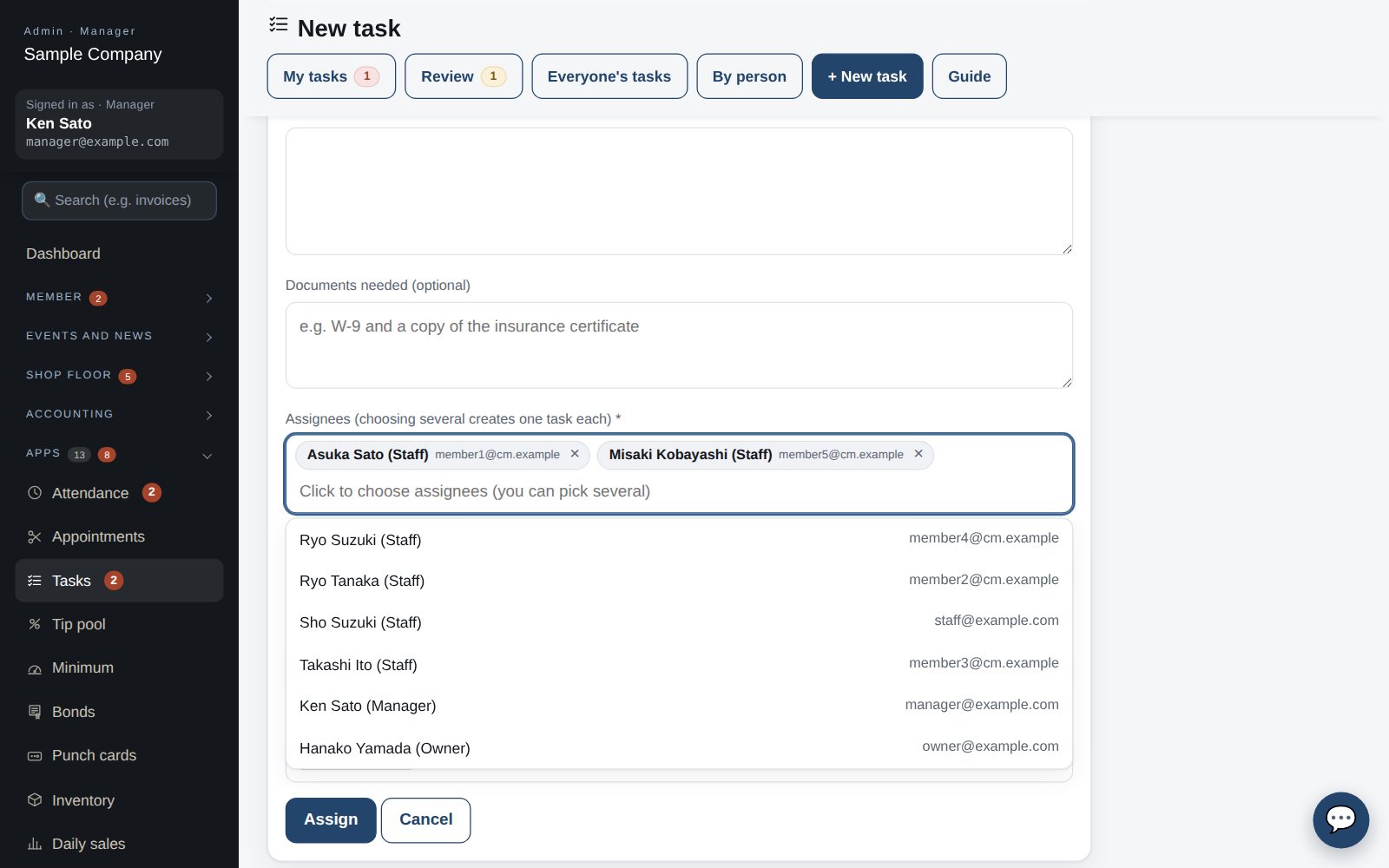
New task: choosing several assignees creates one task each

Assign a task

  1. Under Apps → Tasks → New task, enter the title, what needs to be done, documents needed (optional), assignee, reviewer (blank = you), due date, priority and optional reference files, then “Assign”.
  2. Choosing several assignees creates a separate task for each (e.g. everyone must hand in the same form).
  3. The assignee sees a red count of open tasks (to do, in progress, sent back) next to “Tasks” in the left menu. No emails are sent.
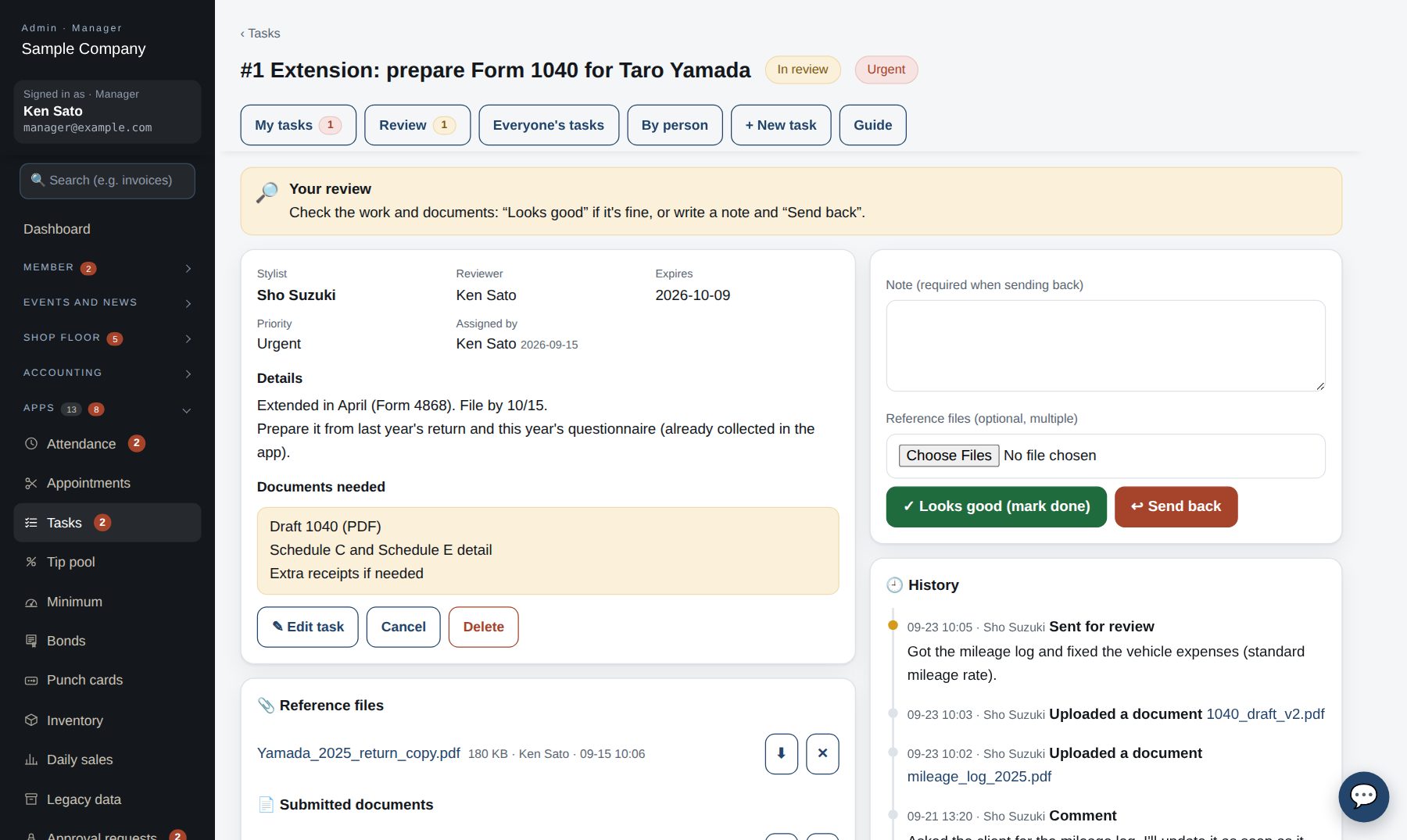
Task page: whose turn it is at the top, history below

Review: done or send back

  1. Tasks sent for review are listed under “Review” and added to your left-menu count. Open one and check the work and documents.
  2. If it's fine, “Looks good (mark done)”. Otherwise write what to fix and “Send back” (a reason is required; you can attach a file). Sent-back tasks count for the assignee again.
  3. The reviewer (or the creator when blank) and owners can review. Done or cancelled tasks can be reopened with “Reopen”.
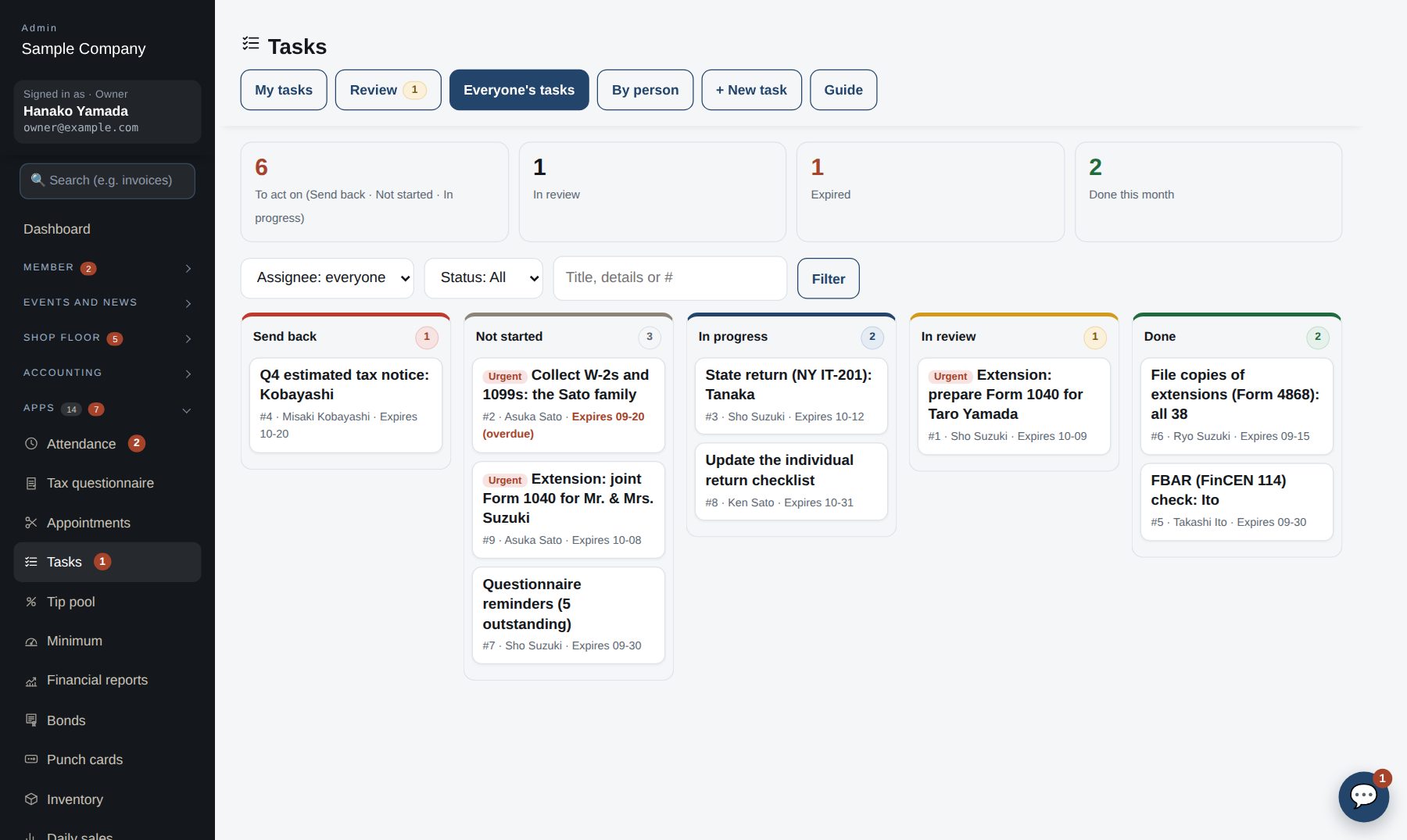
Everyone's tasks: a column per status, and a table by person

See where things stand

  1. “Everyone's tasks” shows a column per status (to do, in progress, sent back, in review, done). Overdue ones are red. Filter by assignee, status or words.
  2. “By person” shows, per staff member, counts of to do, in progress, sent back, in review, overdue and done this month. Click a number to see that person's tasks.

Staff screens

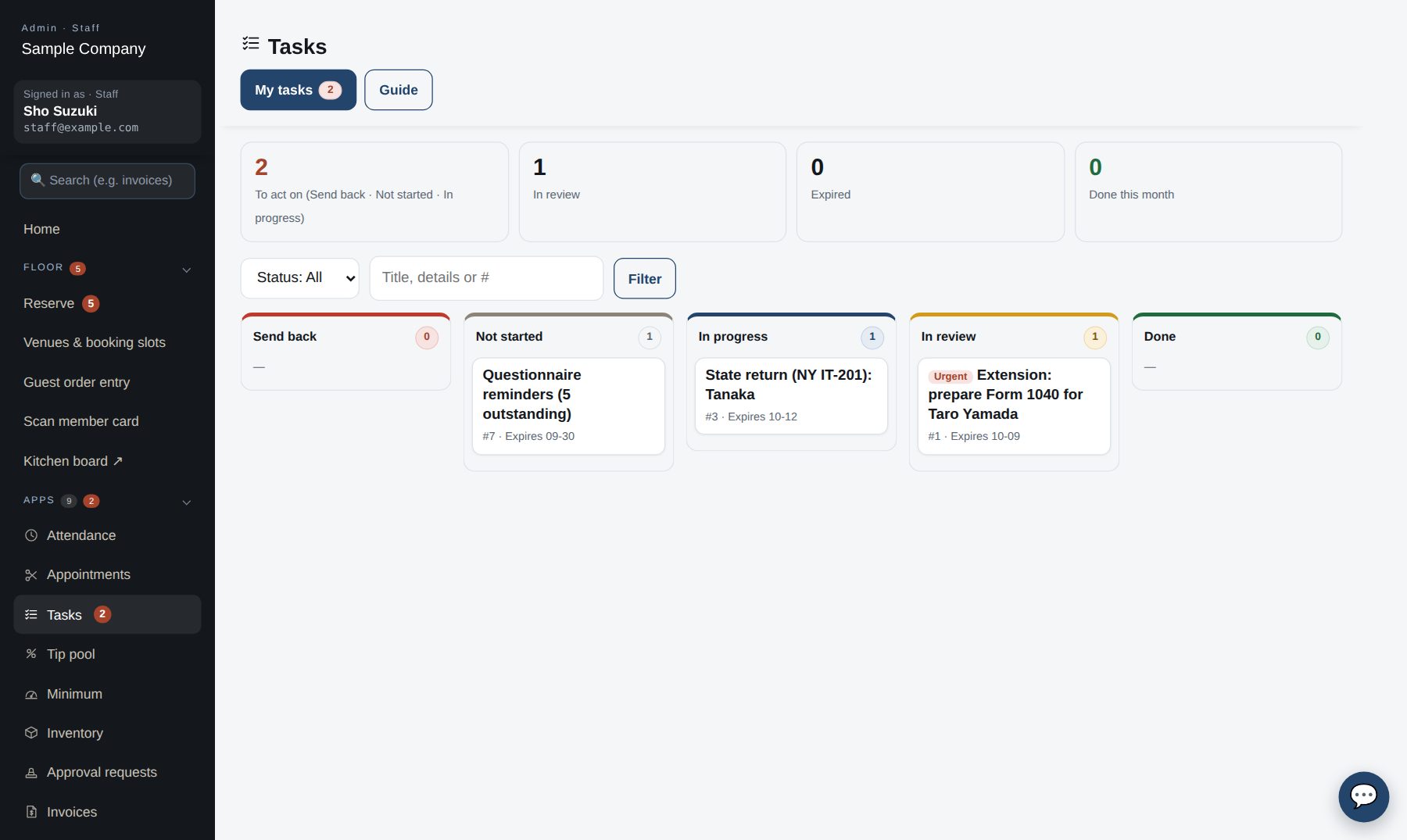
My tasks: what to act on first

Work on a task

  1. The red number next to “Tasks” in the left menu is how many of your tasks are open (to do, in progress, sent back). Click it to see them by status.
  2. Open a task and press “Start”. Upload the documents under “Upload documents” (PDF, images, Office, CSV, ZIP; up to 20 MB each; several at once). Use comments to ask questions.
  3. When finished, “Send for review”. Once approved it becomes Done and drops out of your count.

When a task is sent back

  1. A sent-back task turns red (“Sent back”) and counts again. Open it to see the note at the top; fix it (re-upload documents if needed) and “Send for review” again.

Works well with

Start with just the features you need. If nothing fits the way you work, we'll build it for you — free.

Get started →🎁 Get a custom app, free