Roles, permissions & preview

Decide who can use what — on one screen

Three roles — owner, manager and staff. On the Features screen choose which apps are on, what members see and who can use each app or screen, then preview exactly what staff or members will see. Sign-in uses emailed codes, with two-step verification and an audit log.

Who uses it:Owners
What it does

Three roles

Owner (everything), manager (daily operations), staff (front line and requests).

Per-app access

Dropdowns on the Features screen set who can use each app or screen.

Preview as a role

See staff or member screens without signing in again.

Secure by default

Emailed 6-digit codes plus authenticator apps, and every change in the audit log.

How it flows

  1. 1Owner
    Add people

    Settings → Admins, or make a member staff in the roster.

  2. 2Owner
    Set roles & apps

    System → Features: roles, apps and access.

  3. 3Owner
    Preview

    Use “View as…” and return with “Back to owner”.

  4. 4Staff
    Sign in with a code

    No passwords; each person sees the screens and guides for their role.

See the screens

Admin (office)

Settings → Administrators

Sign-in and roles

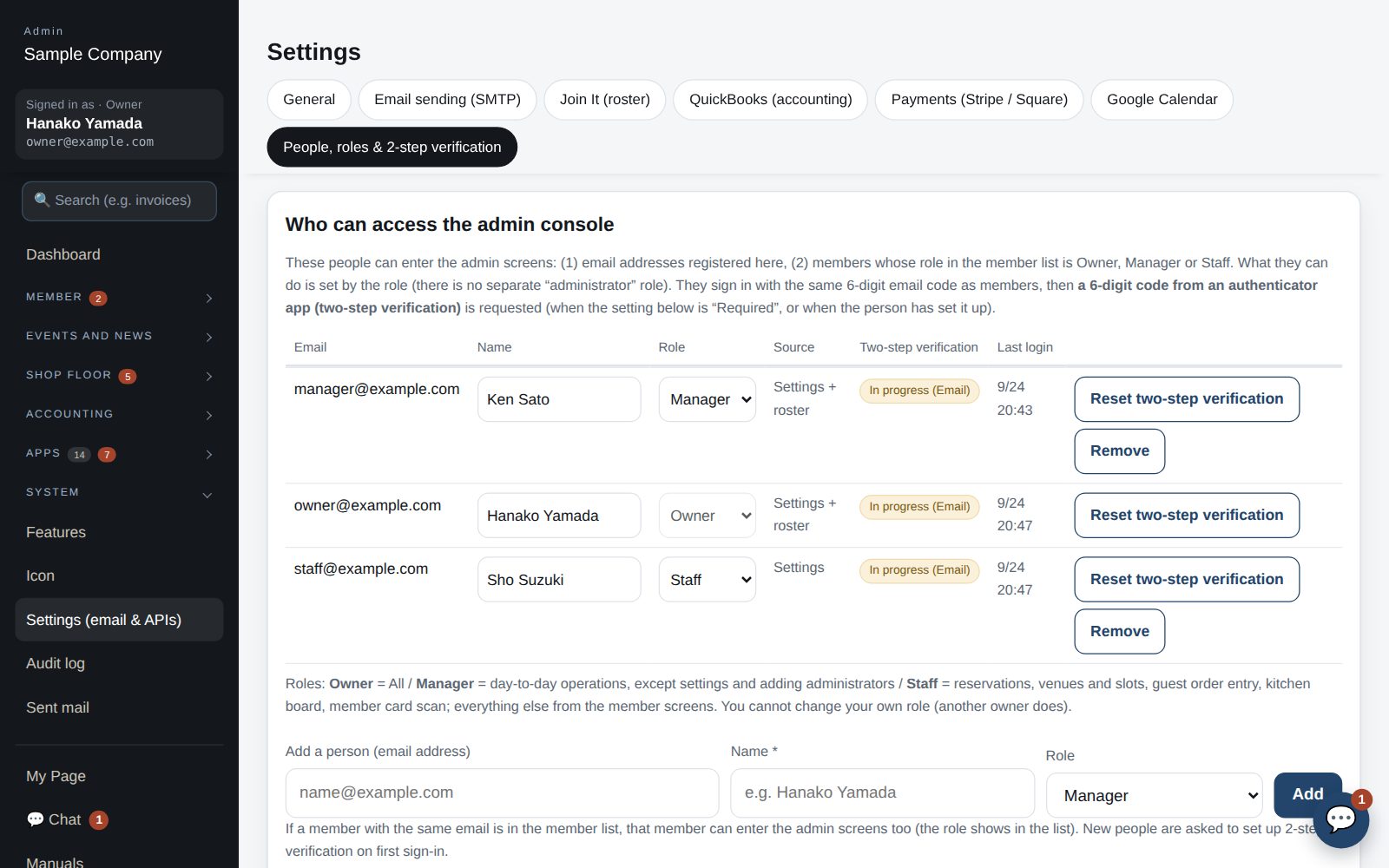
  1. Sign in with an email registered under Settings → Administrators (or a member marked Staff / Administrator in the roster). As with members, you enter the 6-digit code emailed to you.
  2. Two-step verification (authenticator app) is optional by default. Set up your own under Settings → Administrators and it is then required for you alone; a company can also make it required for everyone.
  3. Three roles: Owner (everything), Manager (day-to-day work except settings and adding administrators) and Staff (own attendance, floor screens, requests). A person's standing is one dropdown under System → Features → People: Member / Staff / Manager / Owner (owners only; the member list is updated to match). Which apps are used, what the member screen shows and the lowest role for each app or screen are changed on the same page. Adding or removing administrators is under Settings → Administrators.
  4. To see what staff or managers see, use “Check how it looks” under System → Features; no need to sign in with their account (come back with “Back to owner” in the bar at the top, which stays in place while you scroll).
  5. Guides follow your role: members see the member guide, staff see the member and staff guides, managers and owners also see the manager (admin) guide. Guides for add-on apps appear automatically for the apps the company uses (manager guides only for apps you can open).
  6. Anyone who belongs to more than one company with the same email can move between them from “Switch company” in the left menu.
  7. Setting a member’s roster role to Staff makes them land on the office site as Staff when they sign in (their customer screens are under “Customer view”).
  8. Who changed what, and when, is recorded under Settings → Audit log.

Works well with

Start with just the features you need. If nothing fits the way you work, we'll build it for you — free.

Get started →🎁 Get a custom app, free