Approval requests (ringi)

Request, decide and record purchases, contracts and travel

Submit a request with type, details, amount and attachments such as quotes, and approvers are emailed. Decisions are recorded with notes and easy to find later.

Who uses it:ManagersStaff
What it does

Simple requests

Type, details, optional amount, attachments and one or more approvers.

Approve by email

Decide from the email link without signing in.

On the record

Who decided what and when, with notes.

How it flows

  1. 1Staff
    Submit

    Save a draft first if you like.

  2. 2Automatic
    Approvers notified

    By email, menu count and 🔔.

  3. 3Office
    Decide

    With a note; the requester is emailed.

See the screens

Admin (office)

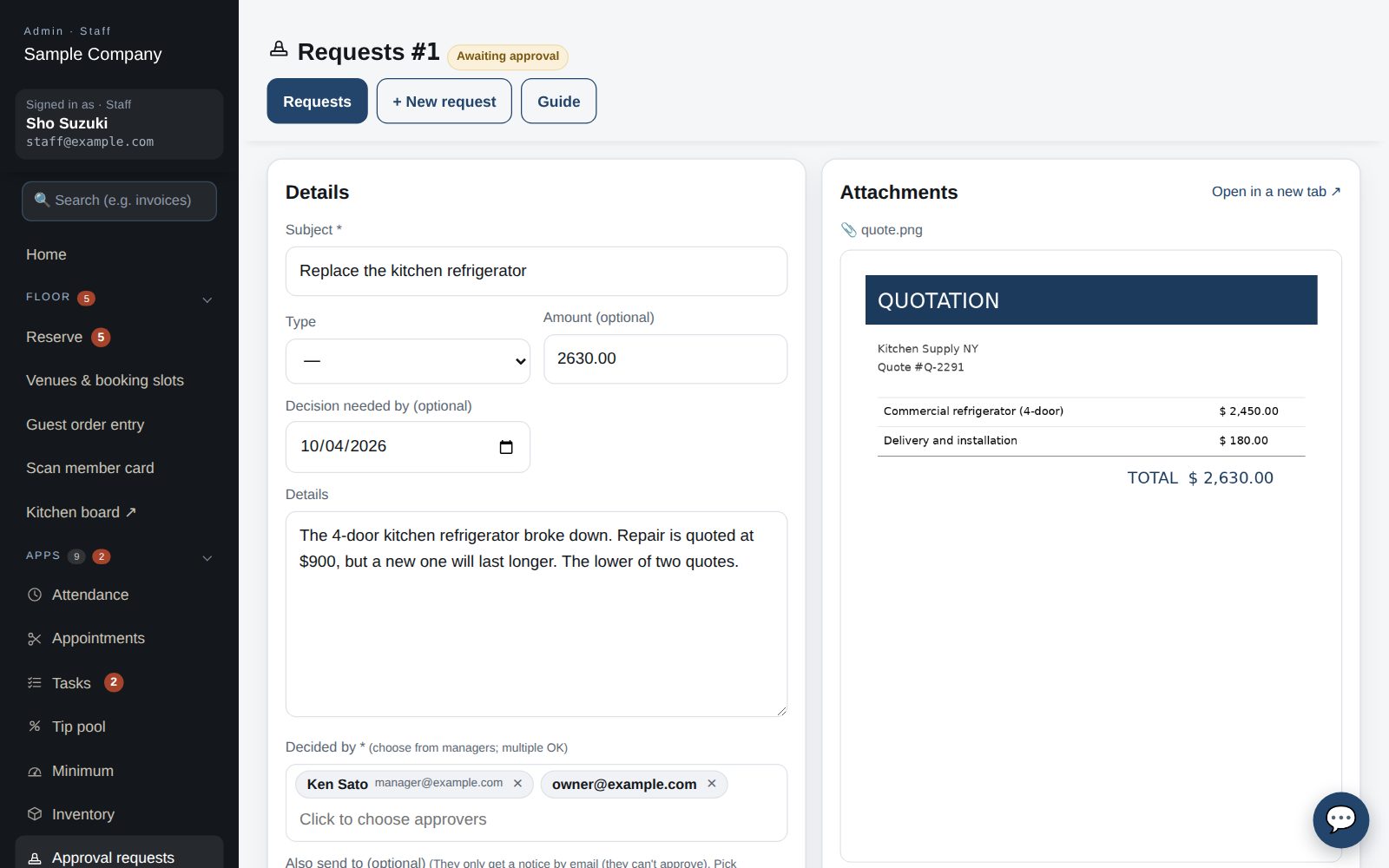
New request: title, details and approvers, then submit

Submit a request

  1. Under Apps → Approval requests → New request, enter the title, type (purchase, contract, travel …), details, amount (if any), an optional attachment (a quote, say) and approvers (managers and up, multiple OK).
  2. “Submit” makes it pending and emails the approvers (with a no-sign-in review link valid for 7 days). Use “Save as draft” to finish later.
  3. You can edit your own request until it is decided. Click a number (#) in the list to open it.
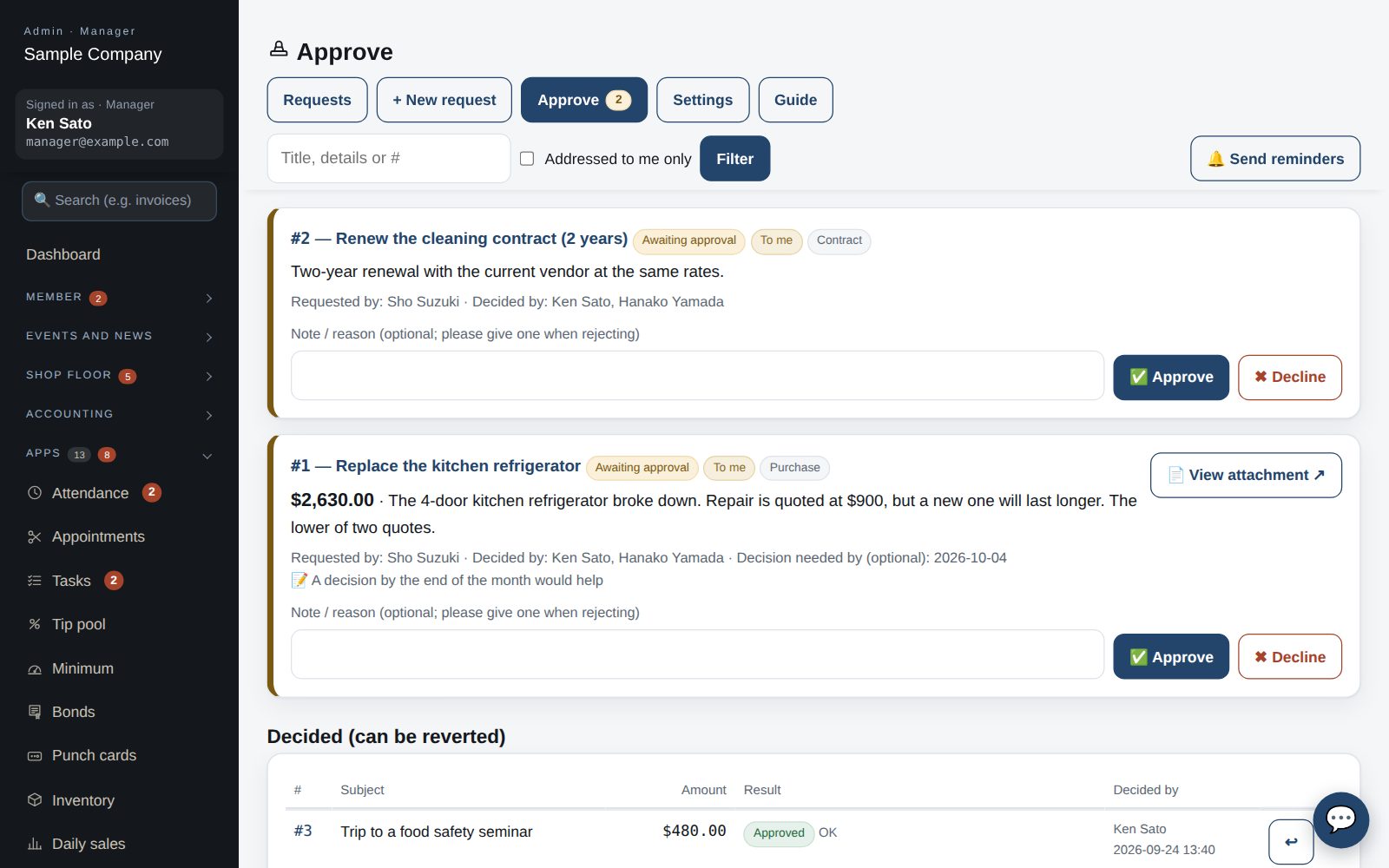
Approvals; items addressed to you have an orange bar

Approve or reject

  1. Pending requests appear under “Approvals”. Check the details and attachment, add a note (a reason when rejecting) and press Approve / Reject. The submitter is emailed.
  2. Only the listed approvers can decide; owners may act on anyone's behalf. Approvers can also decide from the email link. Use “Decided” → ↩ to revert a mistake.
  3. Decisions are logged and the list can be filtered by Approved / Rejected.
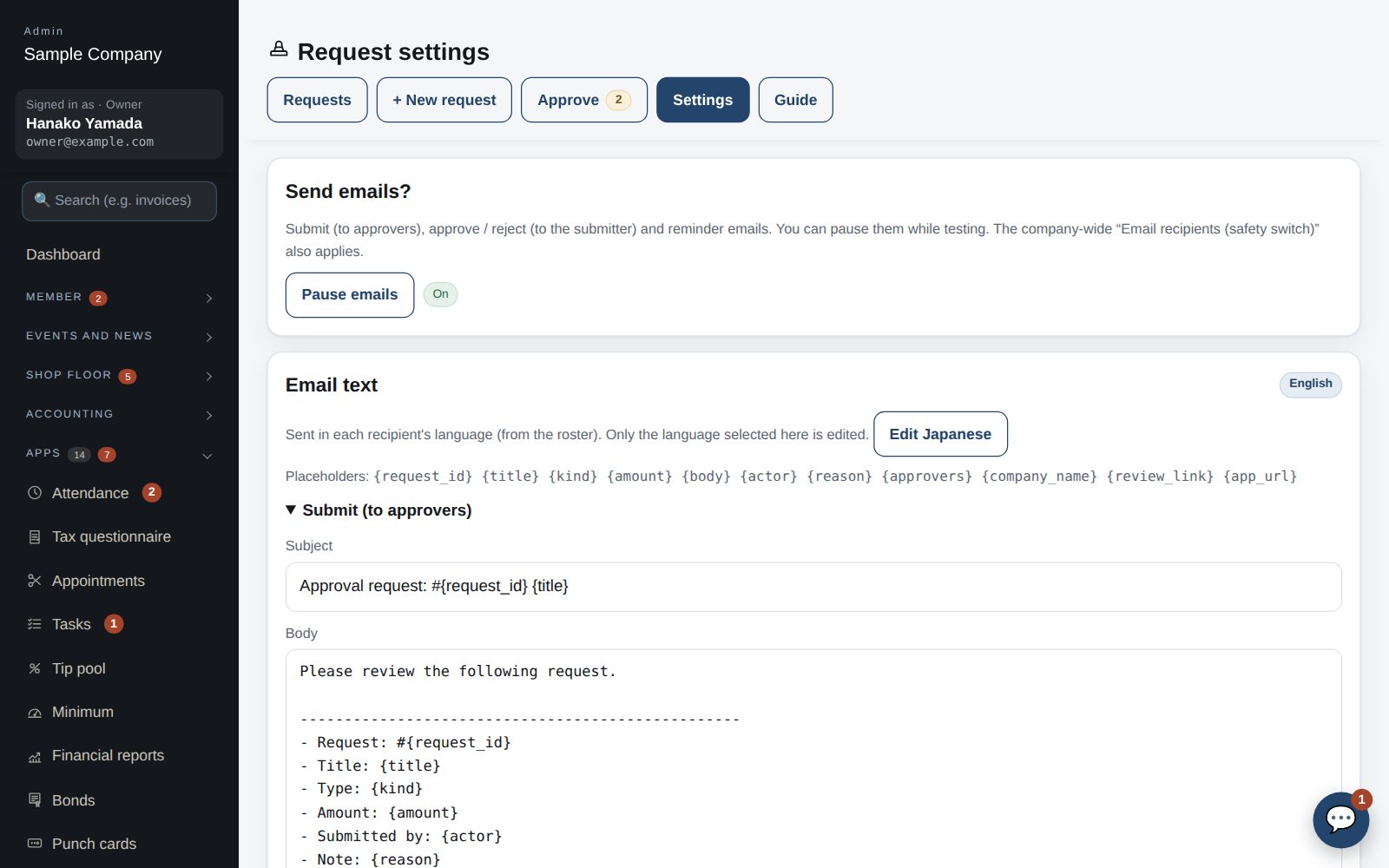
Request settings: pausing emails and editing templates

Settings

  1. “Pause emails” stops submit / approve / reject / reminder emails for this company only. The company-wide “Email recipients (safety switch)” also applies.
  2. Email templates are edited per language and sent in each recipient's language.
  3. Danger zone (owner only): deletes every request, template and attachment. Type DELETE to run.

Works well with

Start with just the features you need. If nothing fits the way you work, we'll build it for you — free.

Get started →🎁 Get a custom app, free