Reservations

Venue-based slots — app and phone bookings in one book

Set each venue's hours by weekday, seats or tables, durations and questions. Members only see open start times, phone bookings go into the same book, and confirmations and day-before reminders are automatic.

Who uses it:ManagersStaffMembers & guests
What it does

Venues & slots

Time ranges like 11:30–14:30 or fixed seatings like 11:30 and 13:30, plus closures and special days.

No overbooking

Once overlapping bookings fill the seats, that time disappears from the app.

Custom questions

Ask what matters per venue: course, kids' chair, seating preference.

Confirm & remind

Confirm pending requests with an email, remind the day before by push, and sync to Google Calendar.

How it flows

  1. 1Member / guest
    Pick a time

    Choose venue, date, duration and party size; only open start times appear.

  2. 2Automatic
    Arrives as pending

    The pending count shows next to Reservations; phone bookings are added here by staff.

  3. 3Office
    Confirm

    Confirm to email the guest; the app shows it as confirmed.

  4. 4Automatic
    Day-before reminder

    By push notification — and it's on your Google Calendar too.

  5. 5Staff
    On the day

    Check arrivals on the day's timeline and scan member cards.

See the screens

Admin (office)

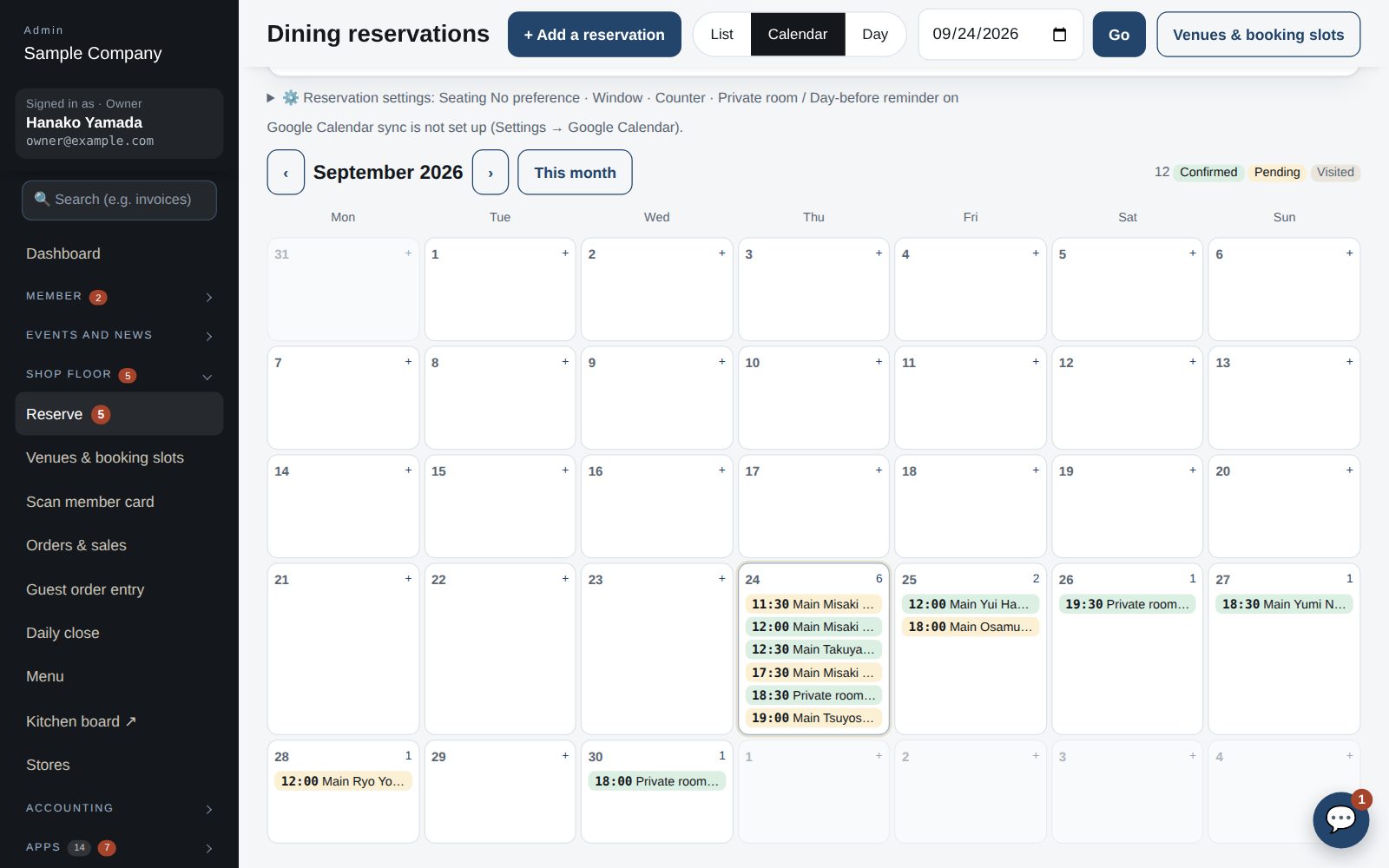
Reservation calendar

Venues, booking slots and reservations

  1. Store → Venues: per venue set seats (or groups), standard length, time step, party range, opening hours per weekday (windows such as “11:30-14:30, 17:30-22:00” or fixed starts such as “11:30, 13:30”), closed and special days, questions to ask, and the lengths guests can choose (blank = 1, 1.5, 2, 2.5, 3, 4, 5 or 6 hours; enter a single value such as 2 to fix it).
  2. Start times where overlapping bookings reach the seat count disappear from the member app (full).
  3. Enter bookings taken by phone, email or at the desk with “+ Add a reservation” (or click an empty spot on the Day timeline). Choose venue, length and party to see open start times. Pick members by name, number or email; enter a name and phone for non-members. You can book outside the hours or when full (a note is shown / “Add even if full”). No email is sent to the guest.
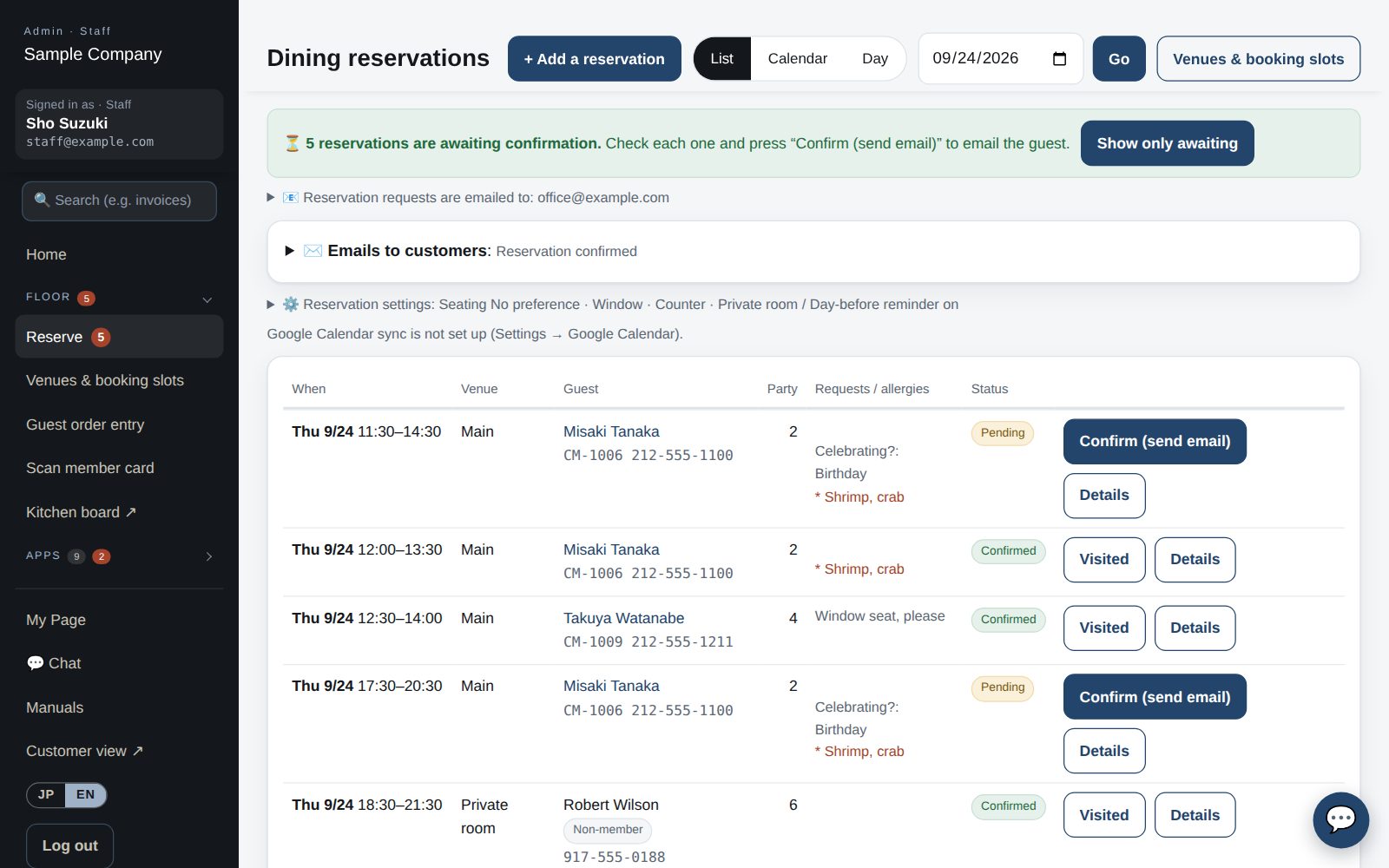
  4. The number of pending bookings appears on Reservations in the left menu and at the top of the Reservations screen (“Show only awaiting”). “Confirm (send email)” shows the recipient and text first; choose “Confirm and send email” or “Confirm without email”. Changes, cancellations and office notes are under “Details”.
  5. At the top of the Reservations screen, managers and owners set “Reservation requests are emailed to” (blank = none) and “Emails to customers” (the confirmation text, with placeholders such as {name} and {date}; restorable to the default) and “⚙️ Reservation settings” (seat preference choices, day-before reminder).
  6. With Google Calendar sync enabled (Settings → Google Calendar), confirmed bookings are added to the club calendar automatically, optionally one calendar per venue.

Staff screens

Reservation list

Checking reservations

  1. Office site → Reservations lists the day’s bookings in time order. The Day view shows a timeline per venue so overlaps are visible.
  2. Enter phone bookings with “+ Add a reservation” (choose venue, length and party to see open times; members by name, number or email, non-members by name and phone). Confirm pending bookings with “Confirm (send email)”; the recipient and text are shown before sending.

Member app & web

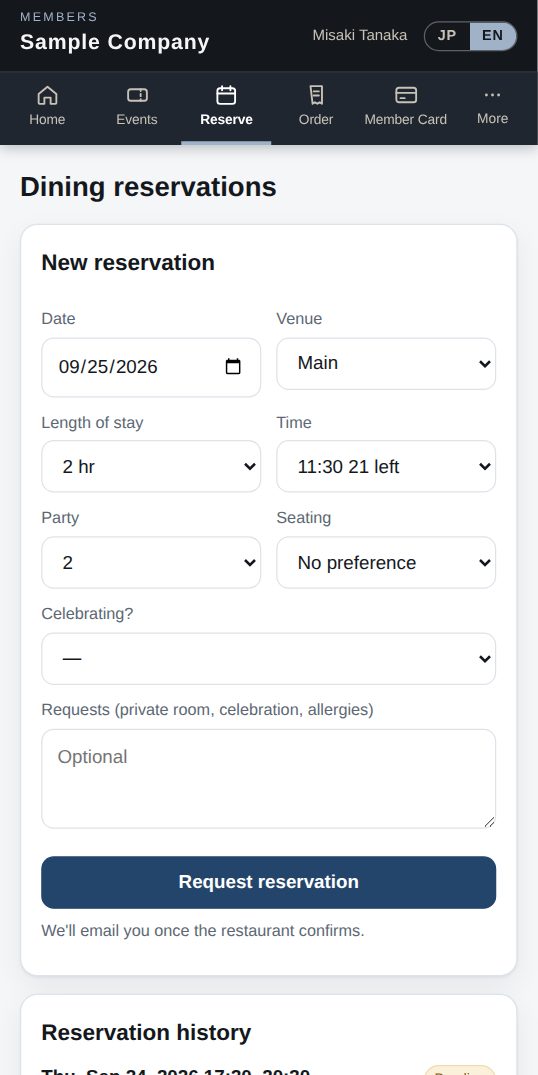
Reservations (web)

Table reservations

  1. Go to Dining → Reserve. Pick the venue, date, length of stay (where the venue offers a choice) and party size; only available start times are shown. Some venues ask extra questions, such as the course.
  2. Add a seating preference (window, private room…) and any requests or allergies, then tap “Request reservation”.
  3. The reservation is registered as “Pending”; when the office confirms it you receive an email and the status becomes “Confirmed”.
  4. Cancel from the reservation list under Dining. For same-day changes please call.

Works well with

Start with just the features you need. If nothing fits the way you work, we'll build it for you — free.

Get started →🎁 Get a custom app, free