Menu & ordering

Order on the phone, cook from the board, update the guest

Members order from their table in the app and it reaches the kitchen tablet instantly. Each tap — start cooking, ready, served — updates the guest's screen within seconds. Staff enter walk-in orders, and the daily close sends sales to QuickBooks.

Who uses it:ManagersStaffMembers & guests
What it does

Build the menu

Categories and items with English names, descriptions, prices, allergens, photos and visibility.

Dine-in & takeout

Table number or pickup time, plus party size, guest names and payer for club tax records.

Kitchen board

New orders chime; cards change colour at 10 and 20 minutes.

Daily close

Totals split by members, non-members, app payments and unpaid, ready for QuickBooks.

How it flows

▶ Watch the order flow
  1. 1Guest

    Open the menu

    Right from the table, guests open “Order” in the member app or the web menu.

  2. 2Guest

    Pick dishes

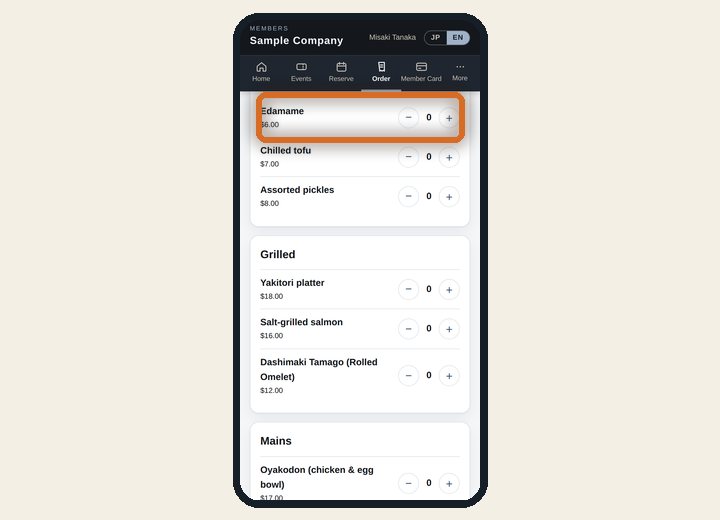
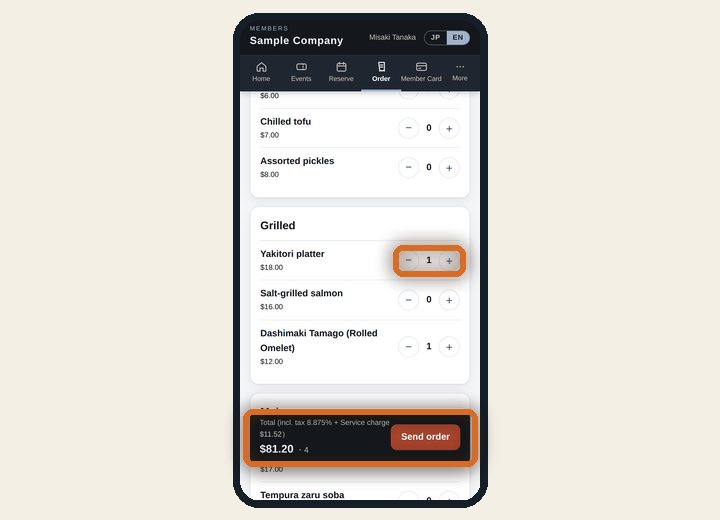
    Tap + to add. The total, with tax and service, appears below. Allergy notes too.

  3. 3Guest

    Add the table and send

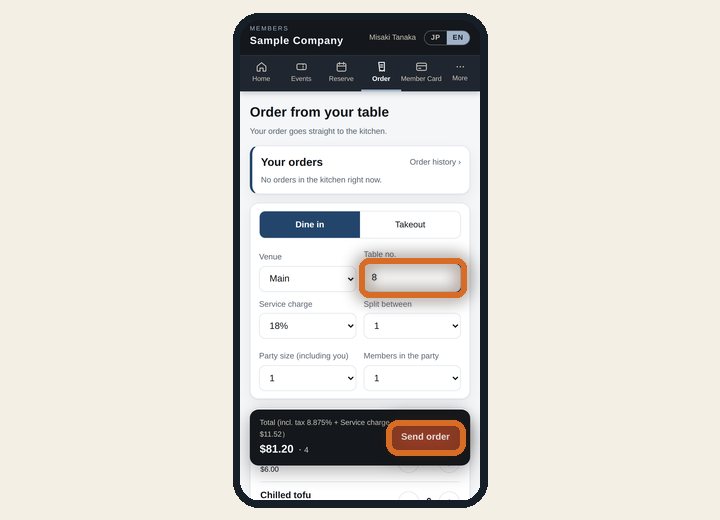
    Tap “Send order”. For takeout, pick a pickup time. No order-taking or re-keying by staff.

  4. 4Automatic

    It reaches the kitchen

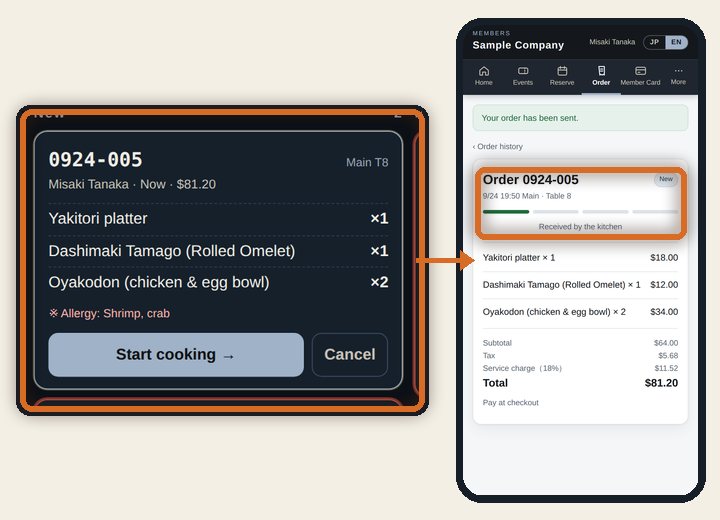
    It chimes into the “New” column, and the guest's screen says it was received.

  5. 5Kitchen

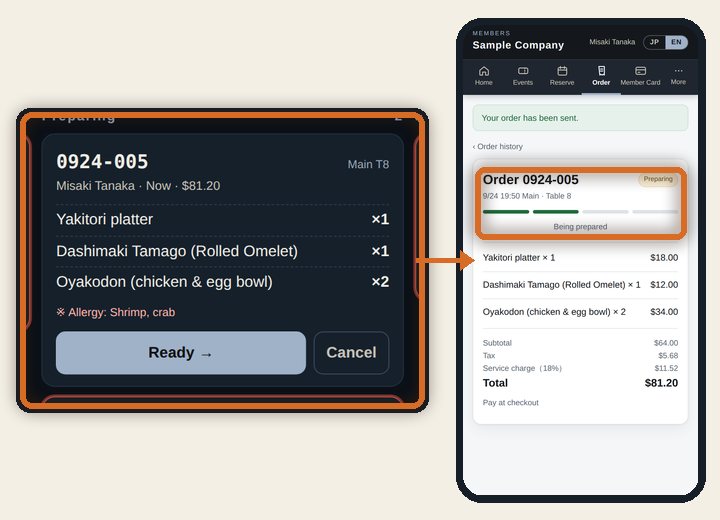
    Tap “Start cooking”

    The card moves to “Preparing”, and within seconds the guest's screen shows it's being prepared.

  6. 6Kitchen

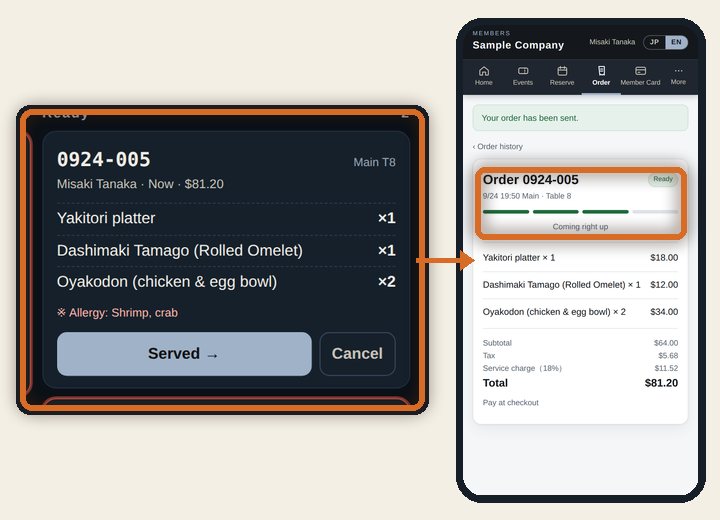
    Mark it “Ready”

    The guest sees it's coming right up, and the floor team sees what's ready to serve.

  7. 7Kitchen

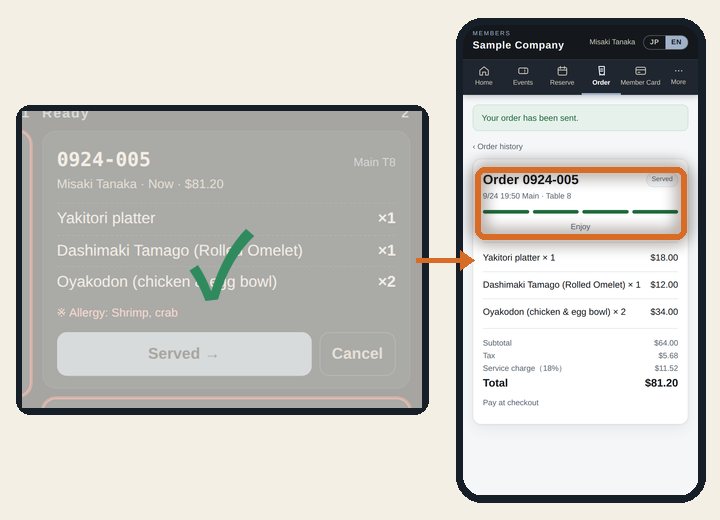
    Mark it “Served”

    The guest sees “Enjoy”, and the card leaves the board so the kitchen can focus on what's next.

  8. 8Office

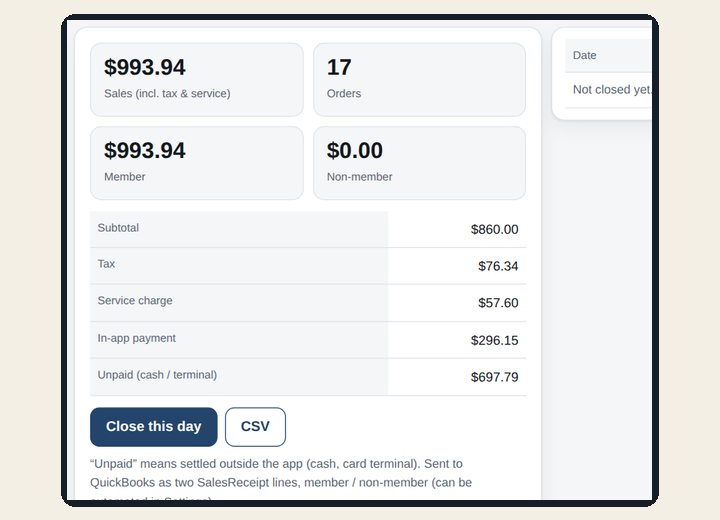
    Into the daily close

    Totals are split by members, non-members, app payments and unpaid, and can go to QuickBooks at close.

See the screens

Admin (office)

Orders & sales

Orders, sales and menu

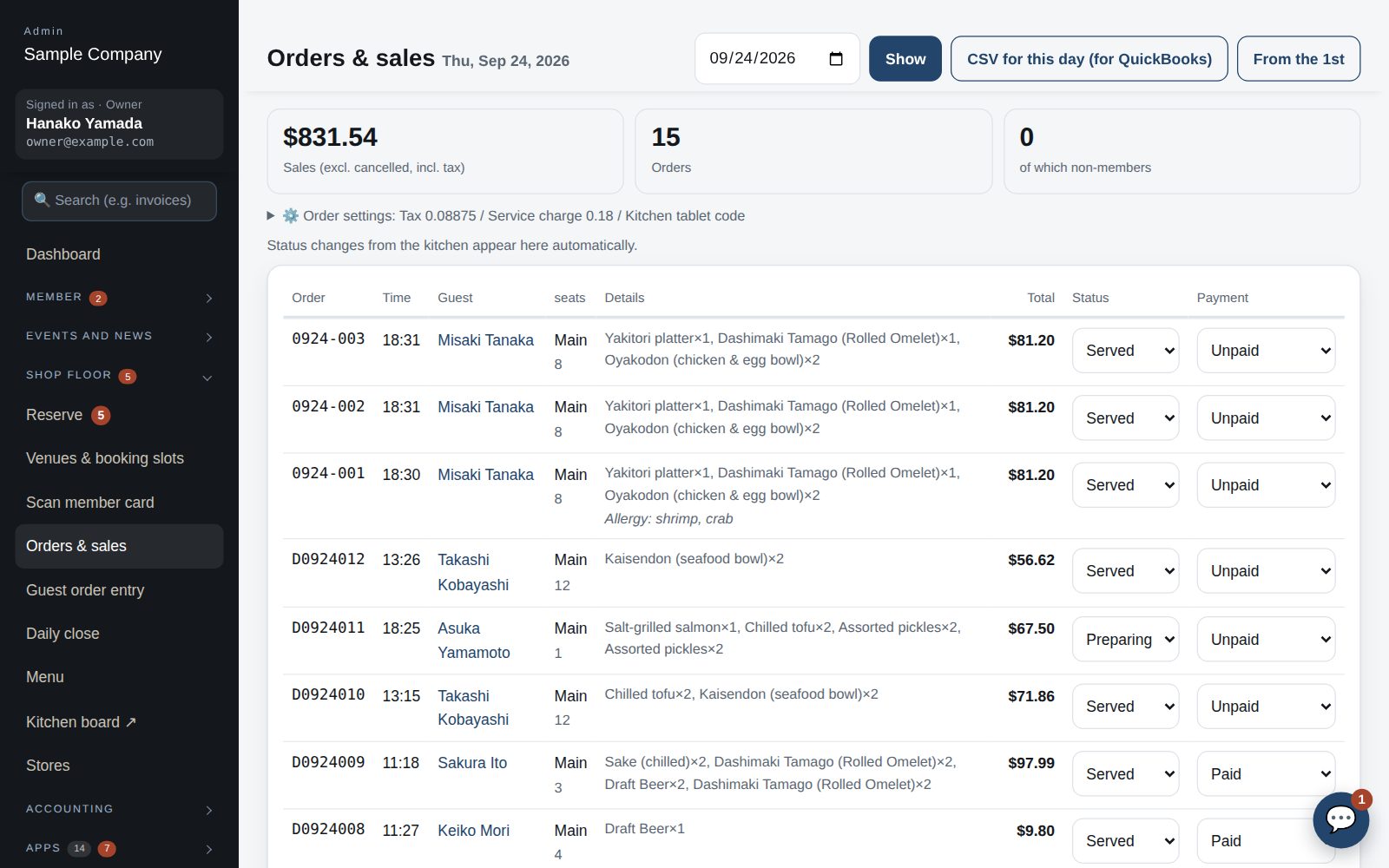
  1. Orders & sales: tickets with status (Received / Cooking / Ready / Served / Cancelled) and payment. Open a ticket for party size, member count, guest names and payer (the Rev. Proc. 71-17 record).
  2. Guest order entry: staff enter non-member orders. The kitchen board (/kitchen) opens with a shared code, which can be regenerated under “⚙️ Order settings” on Orders & sales.
  3. Menu: manage categories and items (name, English, description, price, allergens, photo, shown/hidden). The English fields are what the app shows in English.
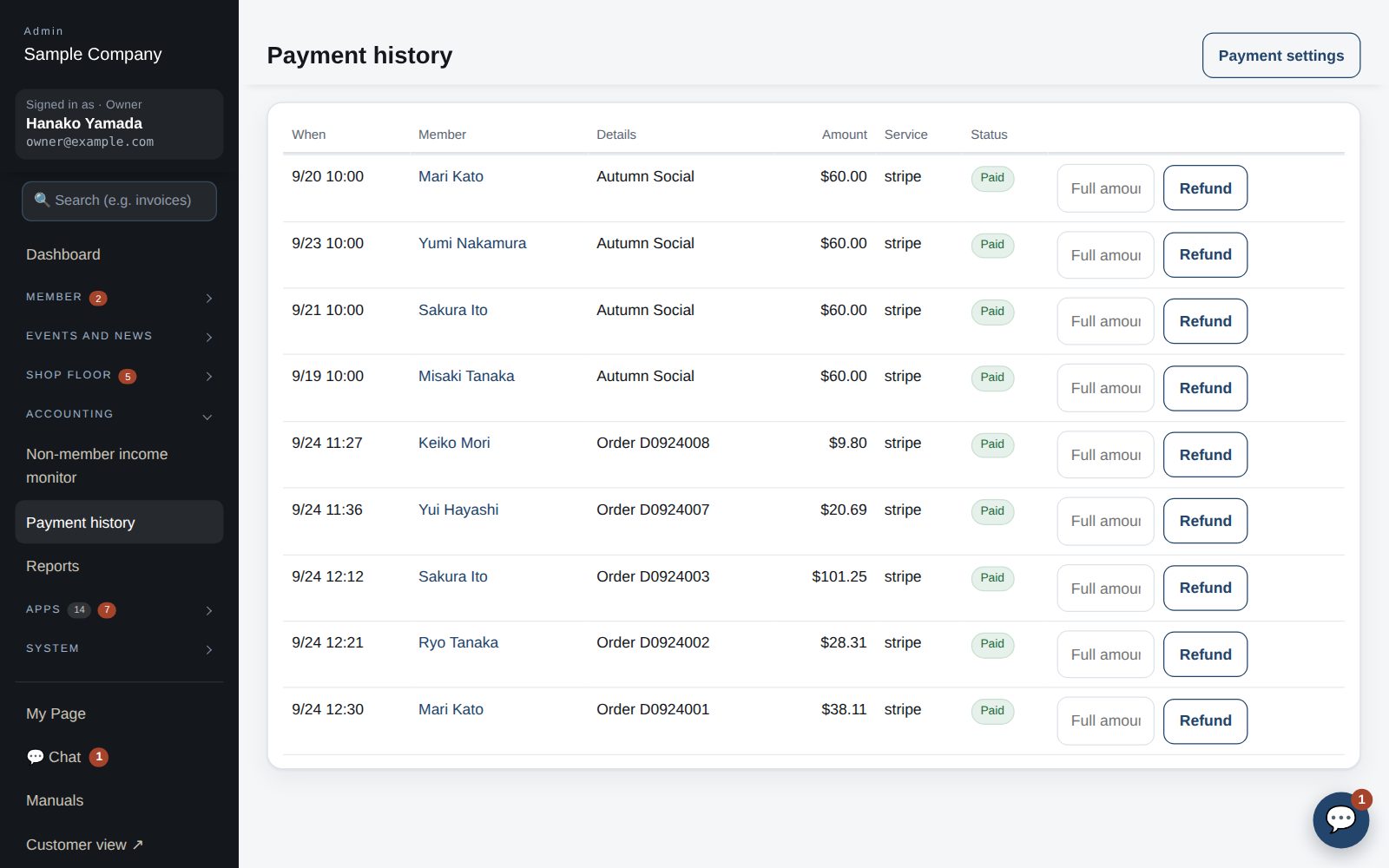
  4. Daily close: close the day’s tickets, fix the sales and post the journal entry to QuickBooks (when connected). Payments: online payment records (Stripe etc.) and the unpaid list.

Staff screens

Guest order entry

Entering a non-member order

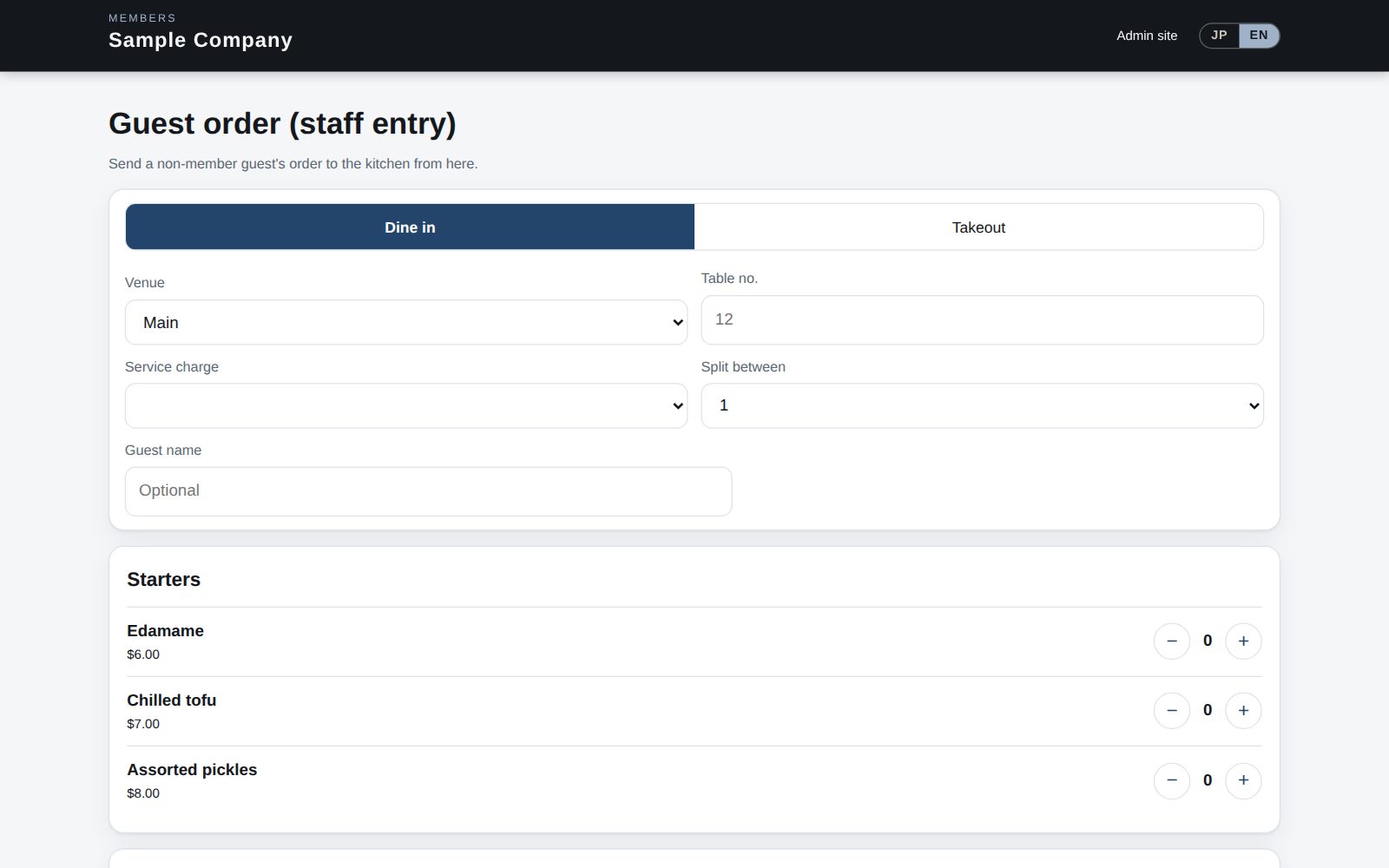
  1. Members order from their own app; staff enter orders for non-member guests. App: Register → “Enter order”; browser: Office site → Guest order entry.
  2. Enter the guest’s name, venue and table (or takeout), items and quantities, then “Send to kitchen”. The ticket appears on the kitchen board like any member order.
  3. Non-member orders are recorded as non-member income (a tax classification the club must track). If a member is hosting and paying for guests, have the member order from their app instead.
Kitchen board

Kitchen board

  1. On the kitchen tablet open /kitchen in a browser and enter the shared code from the office. It stays signed in afterwards.
  2. Staff signed in to the admin screens can open it from “Kitchen board ↗” in the left menu (staff and up by default; the owner can change this under System → Features → “Kitchen board”. The tablet's shared code works regardless of role).
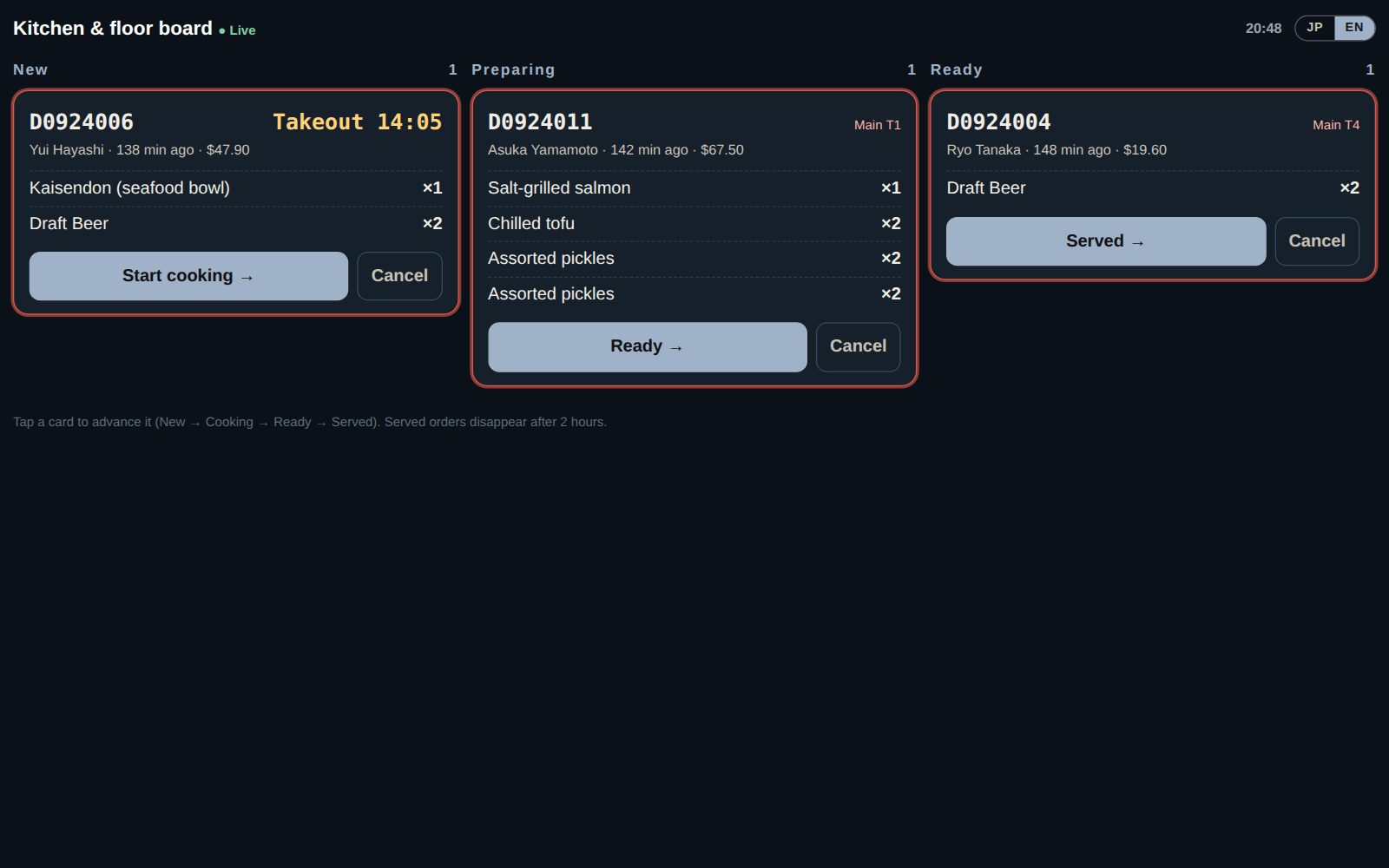
  3. Tickets move New → Cooking → Ready → Served. Tapping a button updates instantly and notifies the member’s app.
  4. Takeout tickets show the pickup time in red. Allergies and requests appear under the ticket. Use “Cancel” to void a ticket.
  5. The board updates live. Switch JP / EN at the top right.
Payments

Payment and Tap to Pay

  1. Member orders are normally charged to the member account and settled on the monthly statement. For payment on the spot, open Register → Unpaid in the app and pick the ticket.
  2. Where Tap to Pay (using the iPhone as a card reader) is enabled, tap “Accept with Tap to Pay” and have the customer hold their card or phone to the top of the iPhone. The ticket becomes Paid when done.
  3. Until Tap to Pay is available, take payment on the counter terminal or cash and mark the ticket Paid under Orders & sales in the office site (choose the method).

Member app & web

App order screen

Order from your table

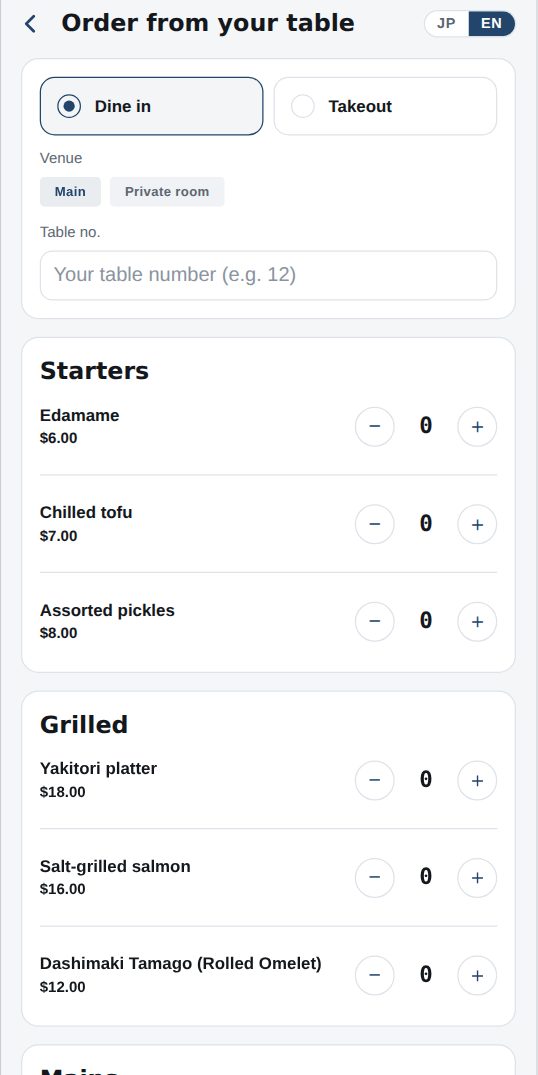
  1. Open Dining → Order from your table and choose dine-in or takeout. Dine-in needs your table number; takeout needs a pickup time.
  2. Add items with “+” from the menu. Tap an item name for photo, description and allergens.
  3. Enter party size, how many are members, guest names and who pays. The club needs this for its tax records.
  4. Tap “Send order”; it goes straight to the kitchen. The status (Received → Cooking → Ready) appears under Dining and on Home, and you get a notification.
  5. Payment is charged to your member account (monthly statement) or, where enabled, by card in the app.

Works well with

Start with just the features you need. If nothing fits the way you work, we'll build it for you — free.

Get started →🎁 Get a custom app, free