Punch cards

Issue 10-visit passes and punch one per visit

Issue punch cards such as 10-visit passes and punch one at each visit. Members see remaining visits and expiry in the app.

Who uses it:StaffMembers & guests
What it does

Issue

Name, number of visits and optional expiry.

Punch

Every punch is logged with who and when.

Remaining in the app

Members check what's left and when it expires.

How it flows

  1. 1Office
    Issue a card

    Choose the member.

  2. 2Staff
    Punch each visit

    Tap Punch once.

  3. 3Member / guest
    Check what's left

    In the app under Punch cards.

See the screens

Admin (office)

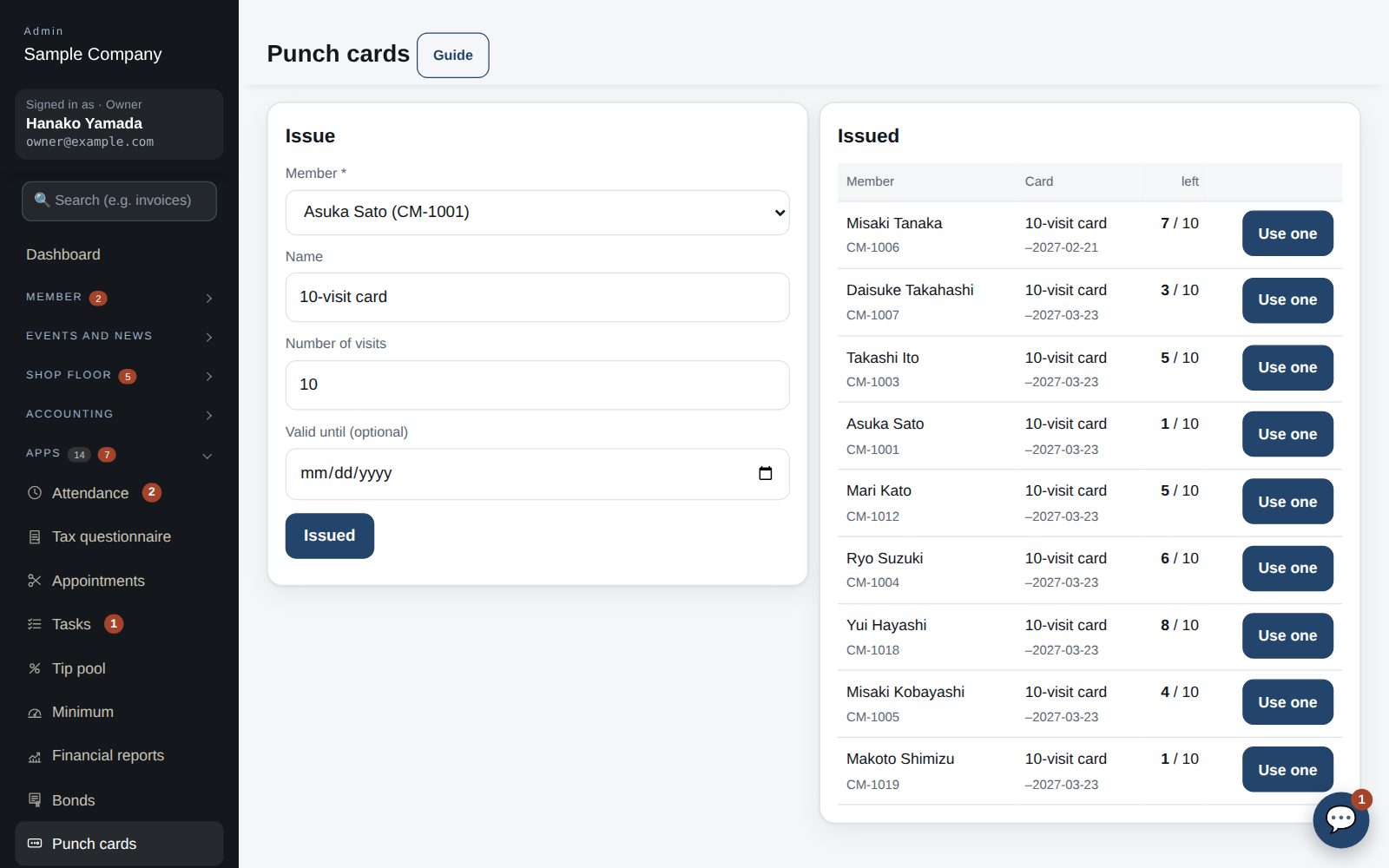
Punch card admin: issuing and “Use one”

Issue, then use one visit per visit

  1. Open Admin → Apps → Punch cards. Choose the member, enter the card name (e.g. 10-visit card), number of visits and an optional expiry, then “Issue”.
  2. At each visit press “Use one” on that member's card. When it reaches 0 it shows “All used” and moves to the bottom of the list.
  3. Each use is recorded with who pressed it. If you press by mistake, issue a new card to adjust.

Member app & web

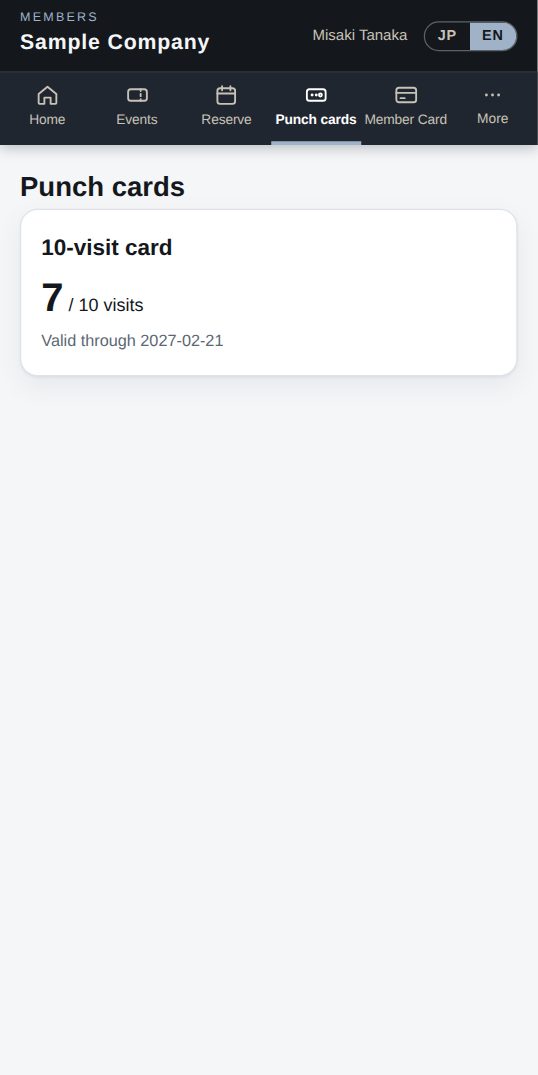
“Punch cards” in the member app (phone)

Your punch cards

  1. Open “Punch cards” in the menu to see your cards, visits left and expiry.
  2. At the front desk give your name (or show your member card); the staff will use one visit.

Works well with

Start with just the features you need. If nothing fits the way you work, we'll build it for you — free.

Get started →🎁 Get a custom app, free