Guest passes

Members invite friends with a pass from the app

Members issue guest passes from My Page and they're emailed to the guest. At the door, staff simply scan the pass. Limits and validity are built in.

Who uses it:StaffMembers & guests
What it does

Issued by members

Just the guest's name and email.

Built-in limits

Up to 12 a year, each valid for 30 days.

Scan at the door

With the same scanner as member cards.

How it flows

  1. 1Member / guest
    Issue a pass

    My Page → Guest passes.

  2. 2Automatic
    Emailed to the guest

    The pass arrives by email.

  3. 3Staff
    Scan at the door

    Staff scan it on arrival.

See the screens

Staff screens

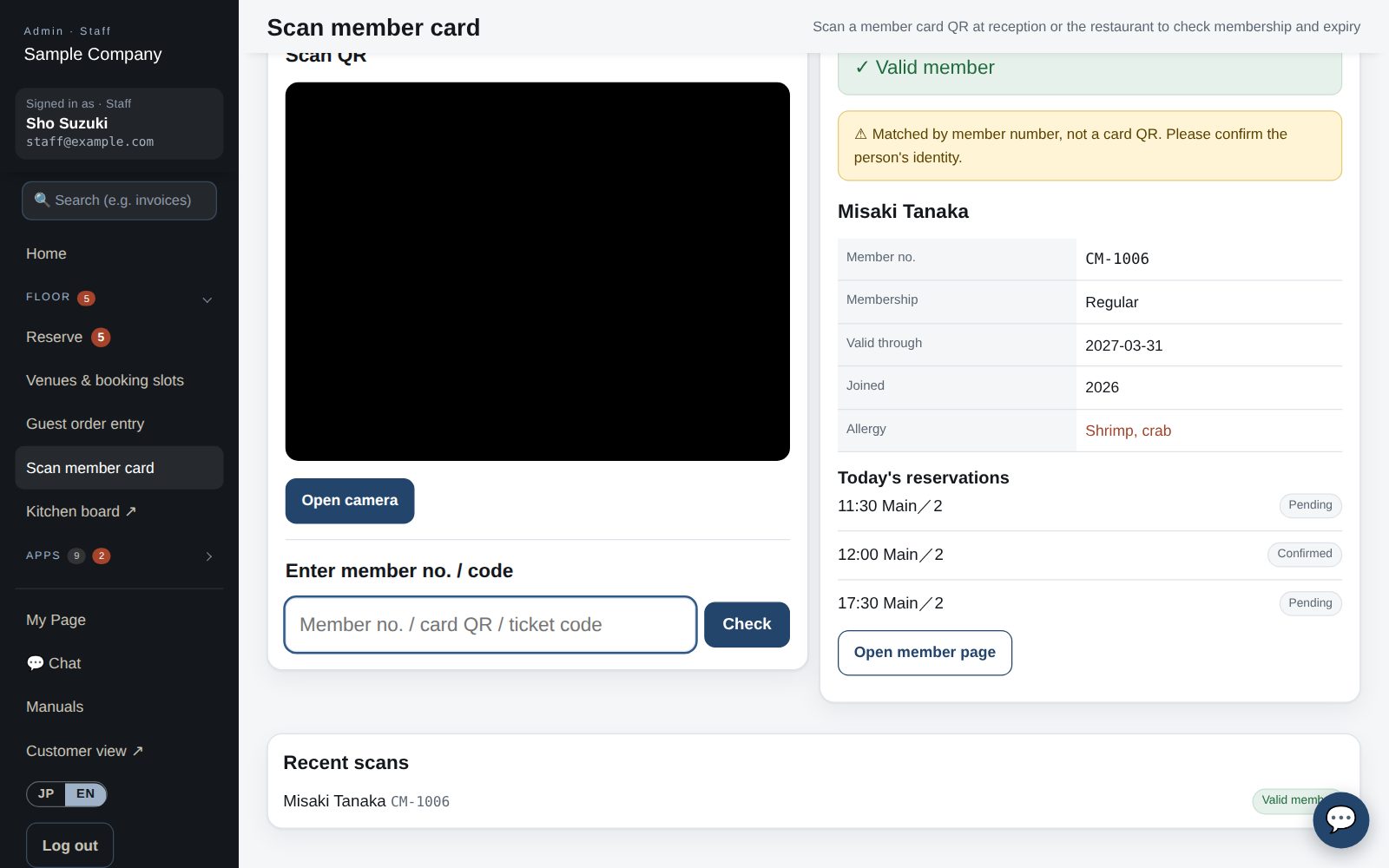
Office site: scan member card

Scanning member cards and event tickets

  1. App: My Page → Staff → “Scan QR”. The first time, allow camera access.
  2. In “Member card” mode, hold the card’s QR in the frame: name, number, category, expiry plus today’s RSVPs and reservations appear. Valid = green; expired or withdrawn = red.
  3. For event check-in, select today’s event in the mode row first. Scanning the ticket or member card marks the guest as checked in; scanning twice does not double count.
  4. If the QR will not scan, type the member number or ticket code in the field below and tap “Check”. The card QR includes the organization, so a card from another organization shows “belongs to another organization” and is not accepted. A QR containing only a number is not accepted either; type the number instead.
  5. Browser: Office site → Scan member card (/admin/scan). Event check-in is also under Events → “Check-in”.

Member app & web

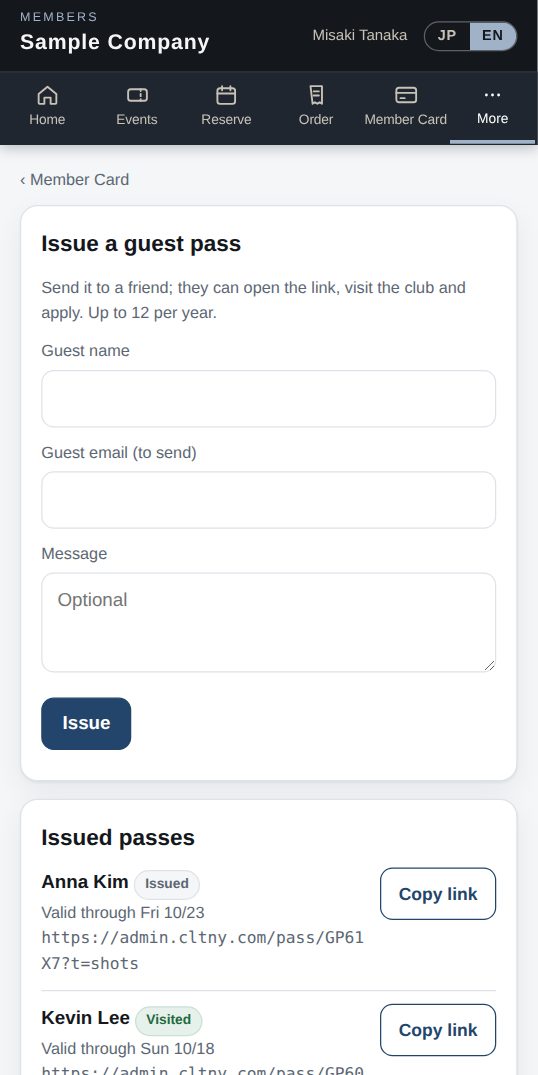
Guest passes (web)

Guest passes

  1. My Page → Guest passes lets you issue a pass for a friend (up to 12 per year). Enter their name and email; the pass is emailed to them.
  2. A pass is valid for 30 days. Your guest shows it at reception.

Works well with

Start with just the features you need. If nothing fits the way you work, we'll build it for you — free.

Get started →🎁 Get a custom app, free